

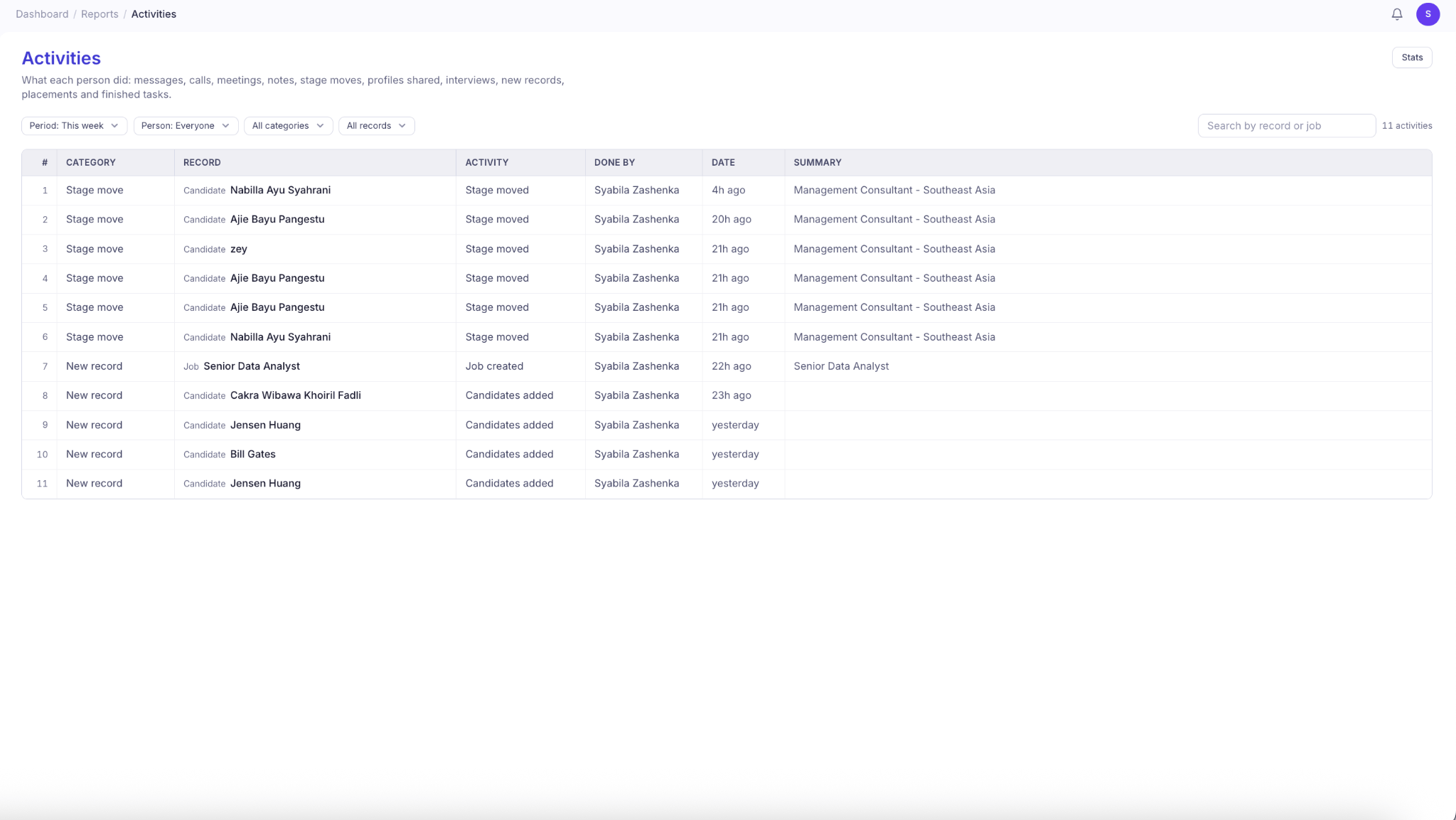
View Team Activities
- Navigate to Activities from the left sidebar under Reports.
- View recorded activities, including the action performed, the team member responsible, and when it happened.
- Use the filters to narrow down activities by date, team member, category, or record type.
- Search for a specific record or job to find related activities.
| Column | Description |
|---|---|
| Category | The type of activity recorded. |
| Record | The candidate, job, client, or other record associated with the activity. |
| Activity | The action performed, such as moving a candidate to another stage or creating a job. |
| Done By | The team member who performed the action. |
| Date | When the activity occurred. |
| Summary | Additional context, such as the related job title. |
Filter Activities
Use the filters at the top of the page to find the activities you want to review.Filter by Period
Click Period to select the time range you want to review. Available options include:- This week
- Last 7 days
- Past week
- This month
- Last month
- Last 3 months
- Last 6 months
- This quarter
- This year
- All time
- Choose dates
Filter by Person
Click Person to view activities performed by a specific team member. Select Everyone to see activities across your entire team, or choose an individual to review their actions.Filter by Category
Click All categories to filter activities by type:| Category | What It Tracks |
|---|---|
| Message | Messages sent through recruitment communications. |
| Call | Calls recorded in KitaHQ. |
| Meeting | Meeting-related activities. |
| Note | Notes added to records. |
| Stage Move | Candidates moved between recruitment pipeline stages. |
| Shared with Client | Candidate profiles shared with clients. |
| Interview | Interview-related activities. |
| New Record | Newly created records, such as candidates or jobs. |
| Placement | Placement-related activities. |
| Task | Task-related activities. |
Filter by Record Type
Click All records to narrow down activities based on the type of record involved. Available options include:- Candidate: Activities associated with candidate records.
- Job: Activities related to job openings.
- Client: Activities associated with client records.
- Contact: Activities involving contact records.
- Task: Activities associated with tasks.