

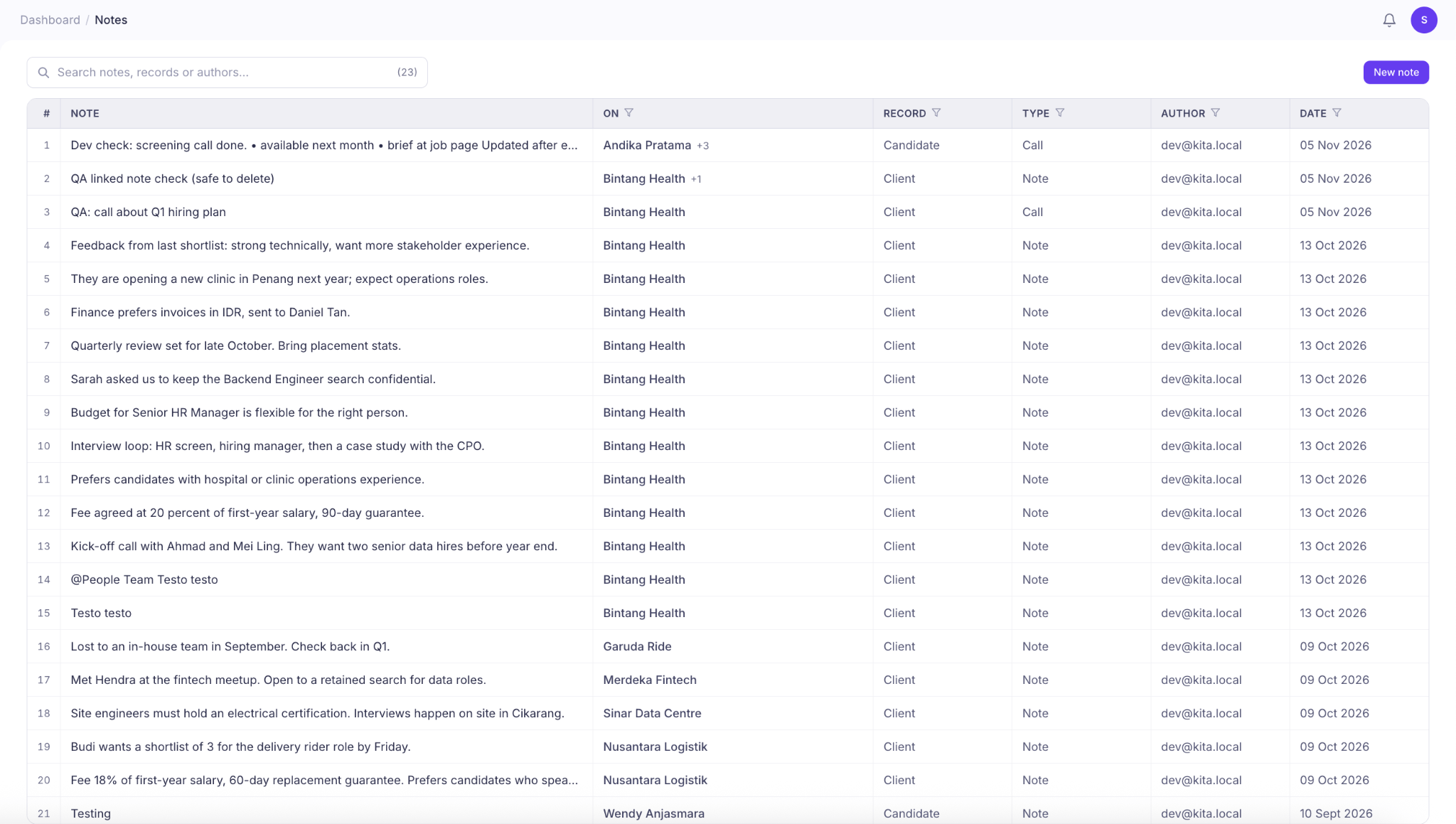
View and Manage Notes
1
Navigate to Notes from the left sidebar under Work.
2
View all recorded notes in one centralized list.
3
Use the search bar to find notes by keyword, related record, or author.
4
Select a note to view its details.
| Column | Description |
|---|---|
| Note | The content of the note, such as candidate feedback, client requirements, or follow-up details. |
| On | The candidate, client, or other records associated with the note. |
| Record | The type of record the note belongs to. |
| Type | The activity type, such as Note or Call. |
| Author | The team member who created the note. |
| Date | When the note was recorded. |
Add a New Note
You can create notes from the Notes page, a Candidate Profile, a Candidate Card in the Pipeline, a Client Profile, or a Contact Profile.From the Notes Page
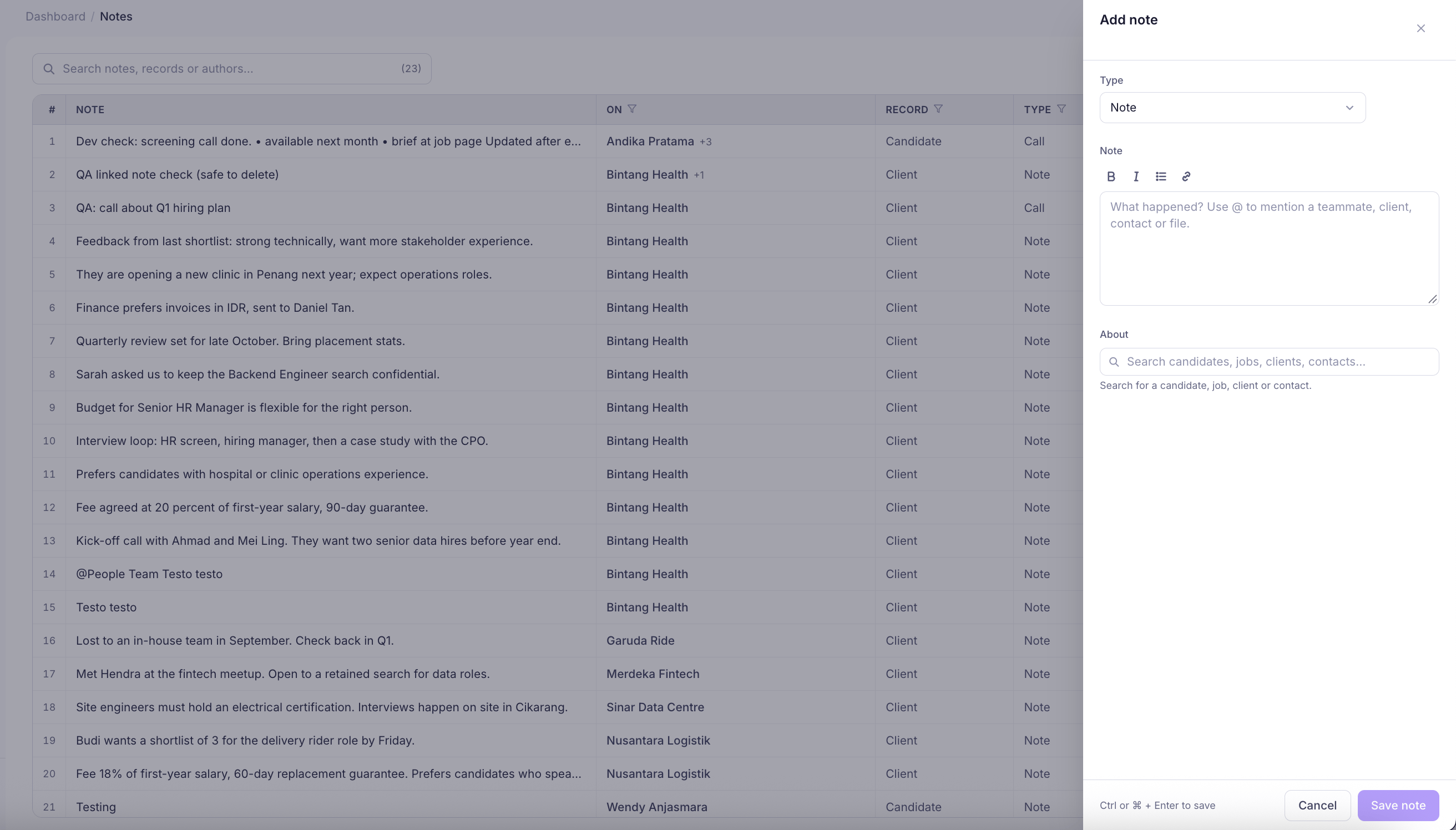
- Navigate to Notes from the left sidebar.
- Click New Note in the top-right corner.
- Select the note type and enter your notes.
- Link the note to the relevant candidate, job, client, or contact.
- Click Save Note.
From a Candidate Profile
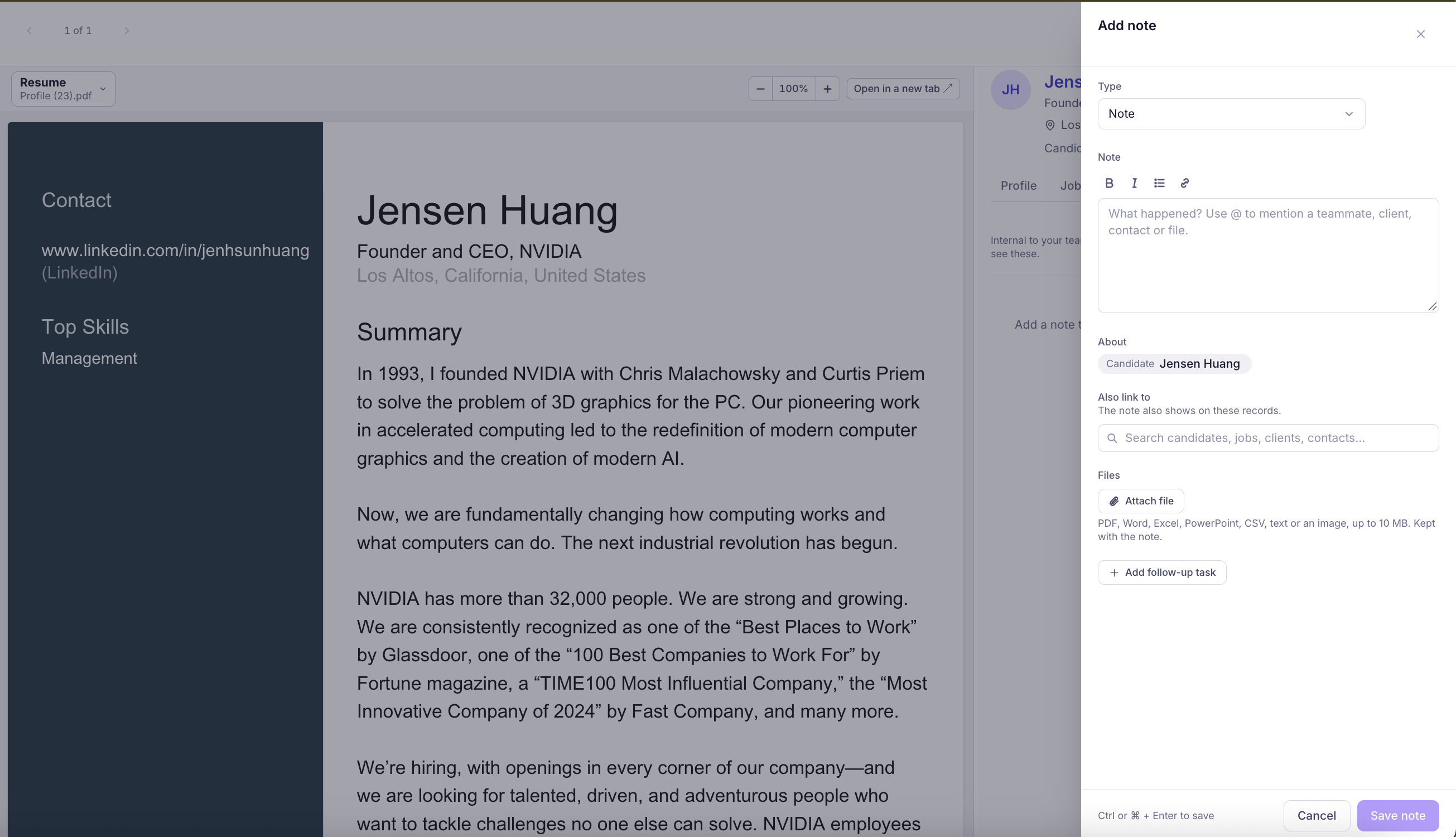
- Navigate to Candidates from the left sidebar.
- Search for and open the candidate’s profile.
- Find the Notes section and click Add Note.
- Enter your note in the text editor.
- Attach files, link additional records, or add a follow-up task if needed.
- Click Save Note.
From the Pipeline
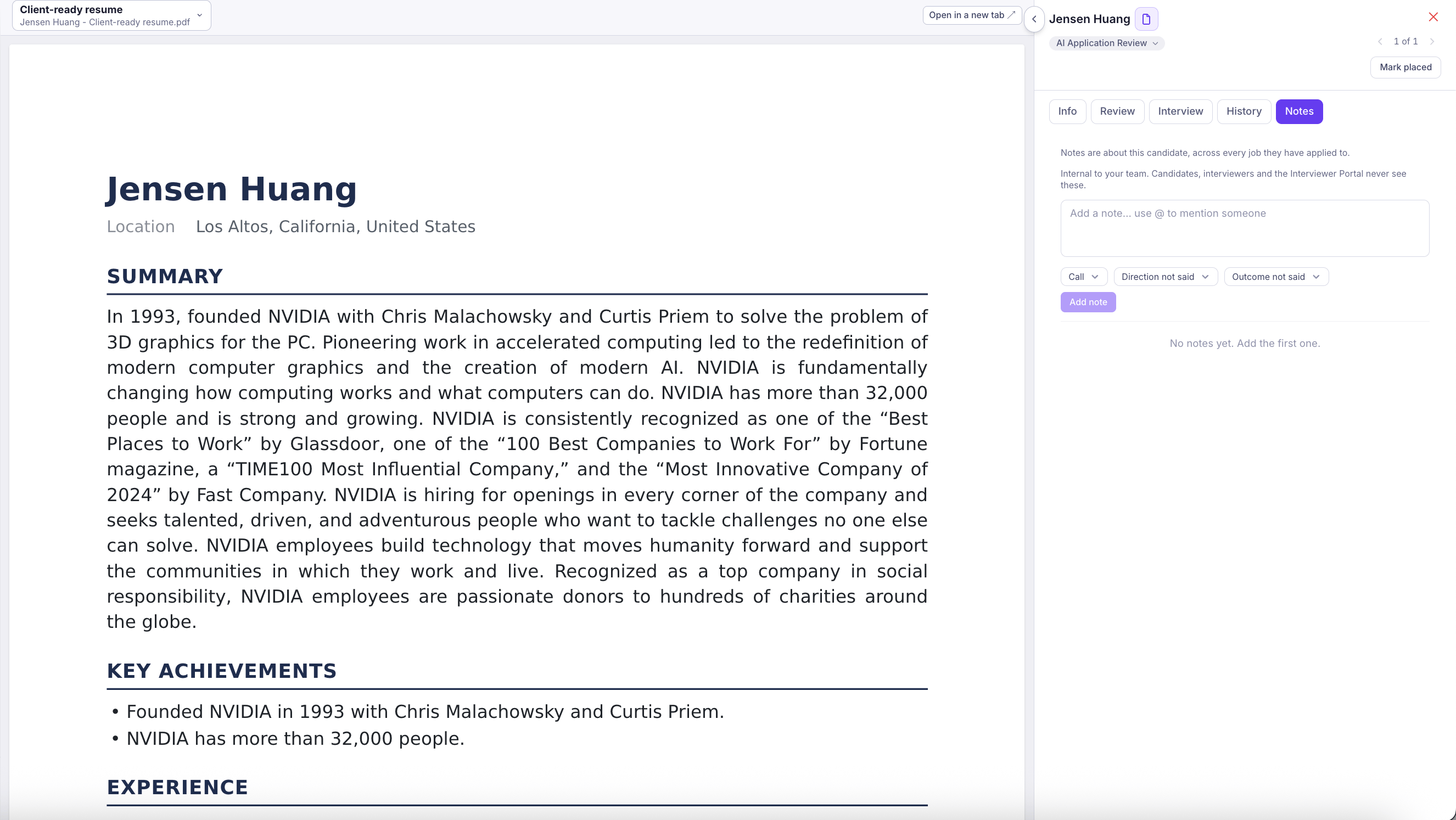
- Navigate to Pipeline from the left sidebar.
- Open the relevant job and select a candidate card.
- Find the Notes section in the candidate details panel.
- Click Add Note.
- Enter your note and add any relevant information.
- Click Save Note.
From a Client Profile
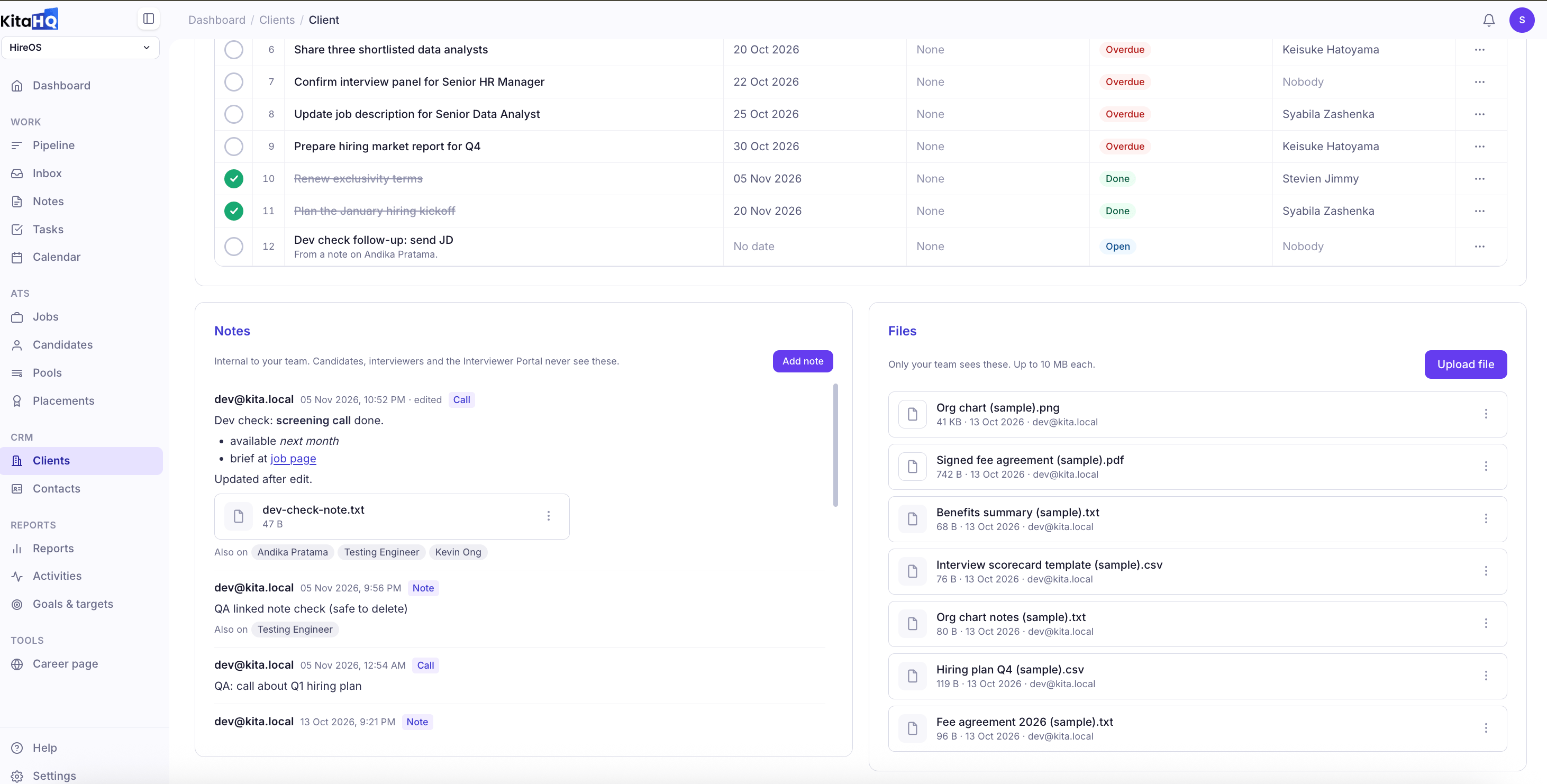
- Navigate to Clients from the left sidebar under CRM.
- Open the client you want to add a note to.
- Select the Tasks, Notes & Files tab.
- Find the Notes section and click Add Note.
- Enter your note and click Save Note.
From a Contact Profile
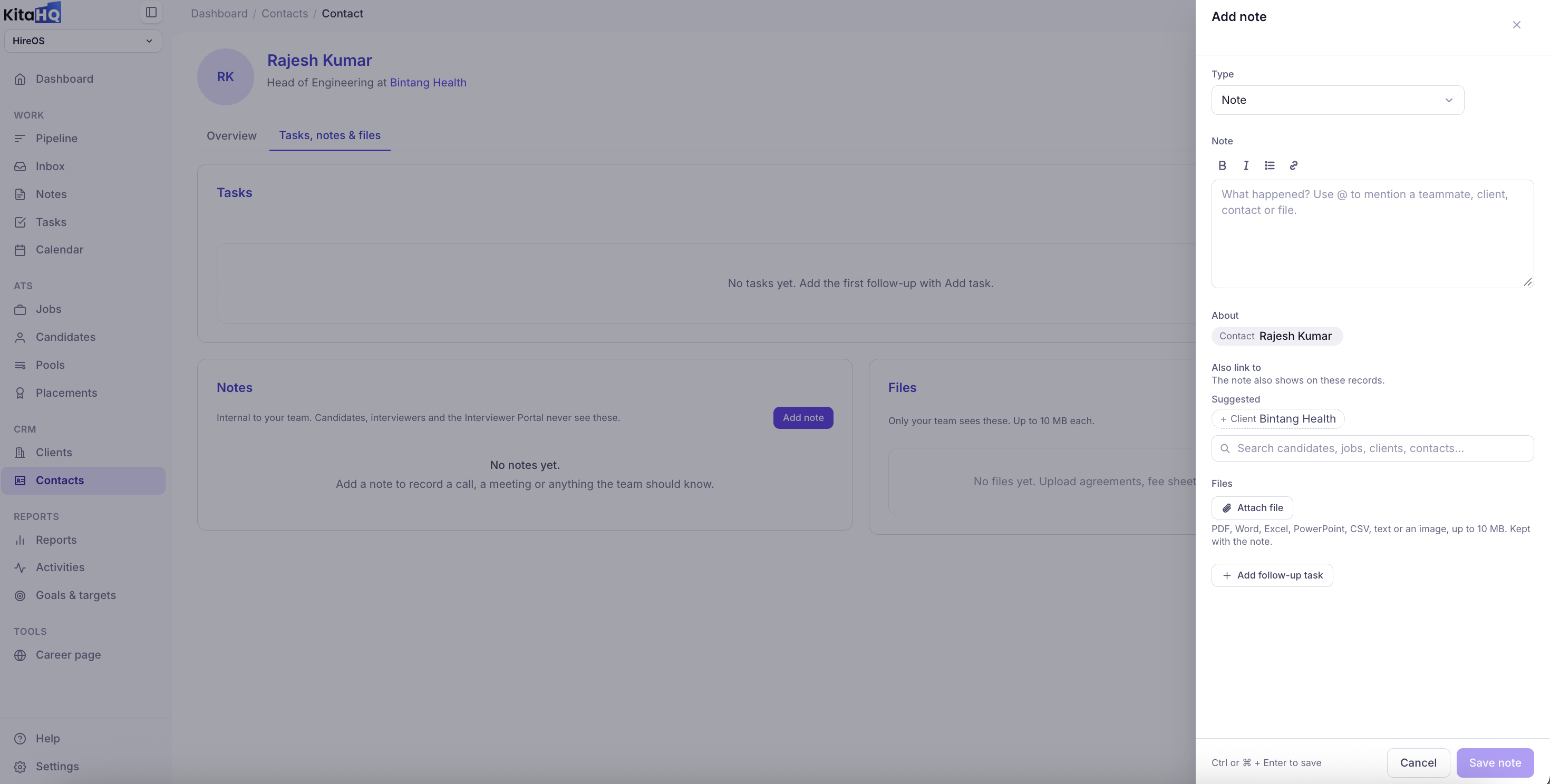
- Navigate to Contacts from the left sidebar under CRM.
- Open the relevant contact’s profile.
- Select the Tasks, Notes & Files tab.
- Find the Notes section and click Add Note.
- Enter your note and click Save Note.
Customize Your Notes
When creating a note, you can add more context using the available options:- Note Type: Select the activity type, such as Note or Call.
- Text Formatting: Use bold, italic, bullet points, or links to organize your notes.
- Mentions: Type
@to mention a teammate, client, contact, or file. - Link Records: Associate a note with multiple candidates, jobs, clients, or contacts. The note will appear on all linked records.
- Attachments: Attach PDF, Word, Excel, PowerPoint, CSV, text, or image files up to 10 MB each.
- Follow-up Tasks: Click Add follow-up task to create a task associated with your note.