

1
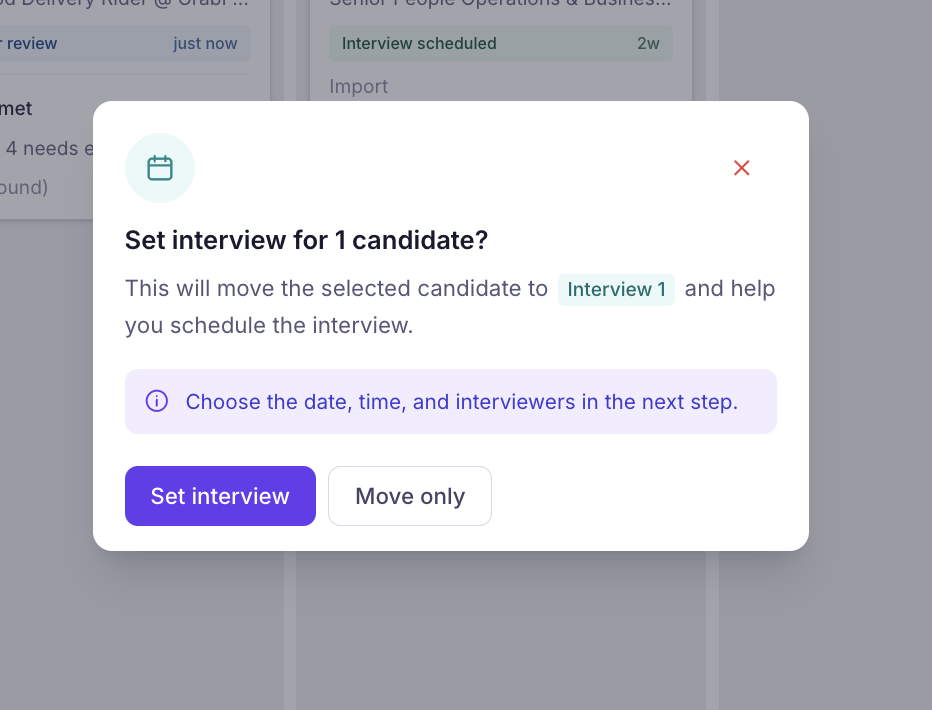
In your hiring pipeline, drag the candidate card to Interview 1 (or the relevant interview stage), then click Set interview to start scheduling.
2
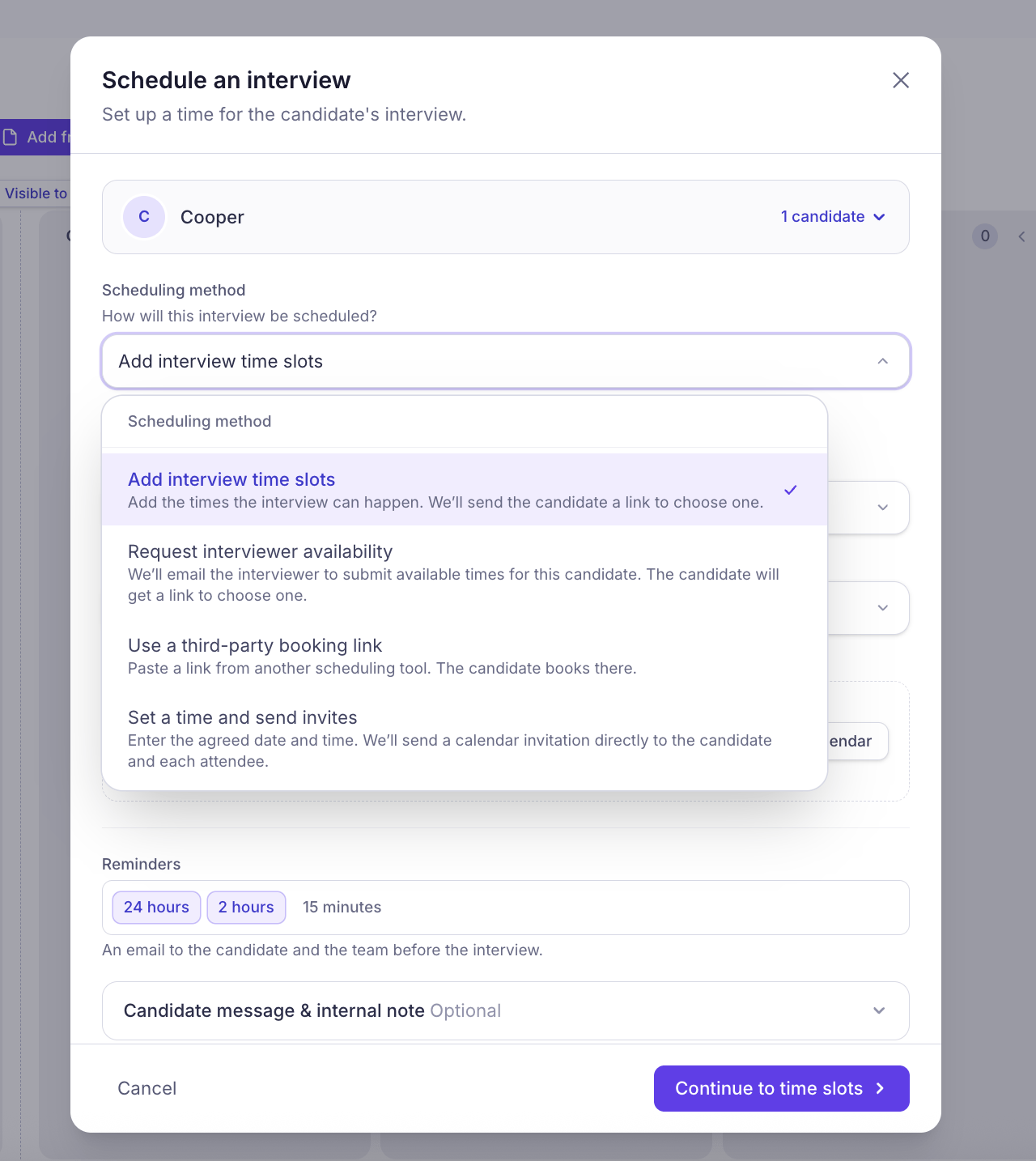
Choose your scheduling method
3
Configure interview details
Choose the main interviewer, select the meeting format, and add any additional attendees. You can also connect your Google Calendar or Outlook Calendar to coordinate availability, set automated interview reminders, and include an optional candidate message or internal note.Once configured, proceed based on your selected scheduling method:
- Add interview time slots: Click Continue to time slots to set available dates and times.
- Request interviewer availability: Click Continue to messages to prepare the availability request.
- Use a third-party booking link: Click Continue to proceed with your external scheduling link.
- Set a time and send invites: Click Continue to set times to enter the agreed interview schedule.
4
Add available interview time slots
Depending on your selected scheduling method, you can:
- Add interview time slots: Choose exact times or a time range, set your time zone and interview duration, and add available slots. Click Continue to messages.
- Request interviewer availability: Customize the email requesting available times, along with booking confirmations and reminders. Click Email the interviewer to collect their availability before candidates receive a booking link.
- Use a third-party booking link: Provide a link from your preferred scheduling tool for candidates to book their interviews.
- Set a time and send invites: Enter the agreed interview date and time and prepare calendar invitations for the candidate and attendees.
5
Review and confirm interview scheduling
Review your interview details, messages, and recipients before confirming. The final action depends on your selected scheduling method:
- Add interview time slots: Review the available slots, booking invitation, confirmation, and reminder messages. Confirm to send candidates their booking links.
- Request interviewer availability: Review the availability request and click Email the interviewer. Once the interviewer provides available times, candidates can receive their booking links.
- Use a third-party booking link: Review your external booking link and invitation message before sending it to candidates.
- Set a time and send invites: Verify the scheduled date, time, interviewer, attendees, and invitation details before sending calendar invitations.