

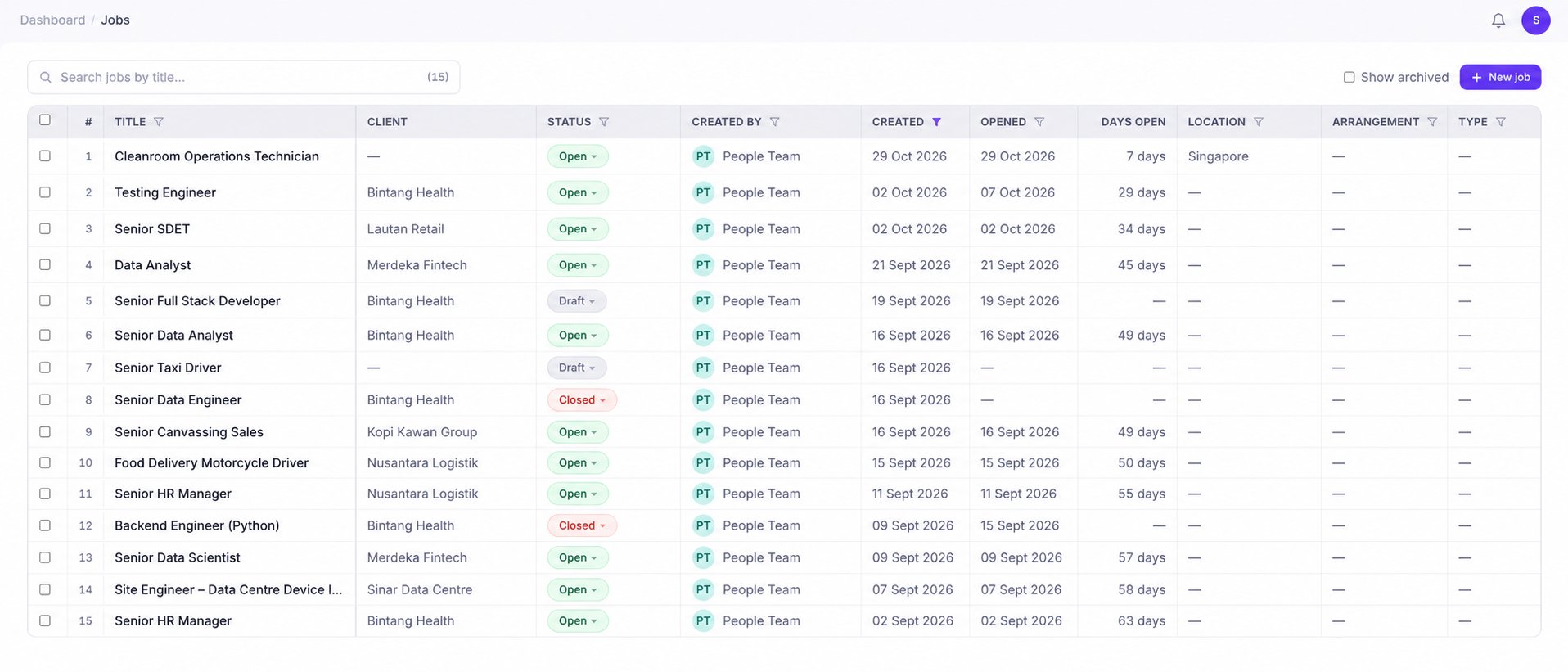
1
Enter your job details
Enter a job description or provide key details such as the job title, location, experience level, required skills, and salary. Enable Enhance with AI, then click Generate job setup to let KitaHQ automatically draft the job details and prepare the next steps.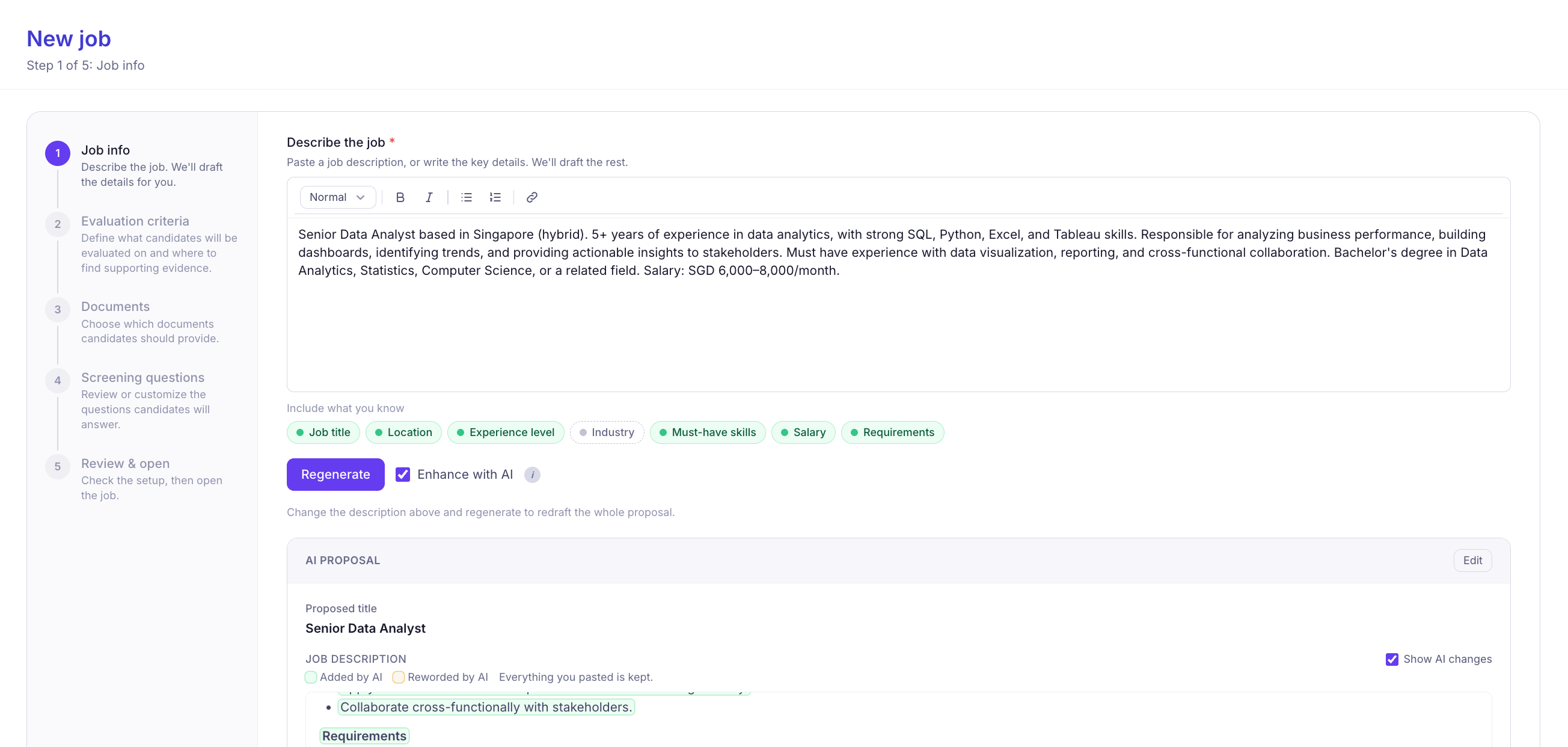
2
Review your evaluation criteria
KitaHQ automatically generates evidence-backed evaluation criteria based on your approved job description. Each criterion defines what to assess, its importance (Must-have or Nice-to-have), and where to look for supporting evidence, including resumes, screening question answers, and supporting documents such as certificates or licenses.Review the generated criteria, edit or remove any that don’t apply, or add your own. You can also customize the evidence sources and evaluation instructions for each criterion. Once everything looks good, click Continue.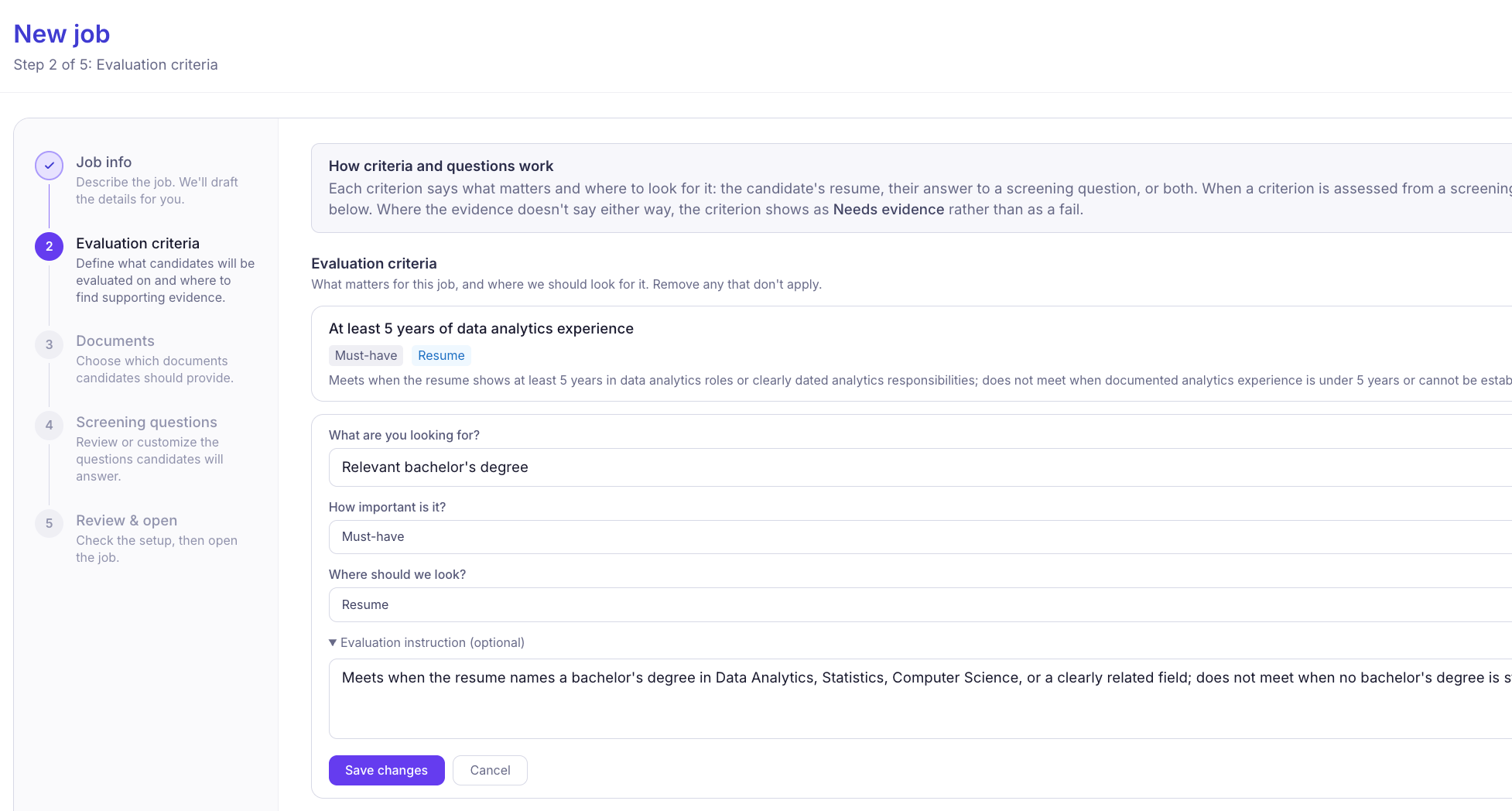
3
Set up required documents
Choose which documents candidates need to submit, such as resumes, education certificates, or licenses. You can also add custom document requirements based on the role.KitaHQ automatically includes documents linked to your evaluation criteria. Select Ask after screening questions to collect documents once candidates complete their screening, or choose No documents needed if additional uploads aren’t required.Review your selections and click Continue.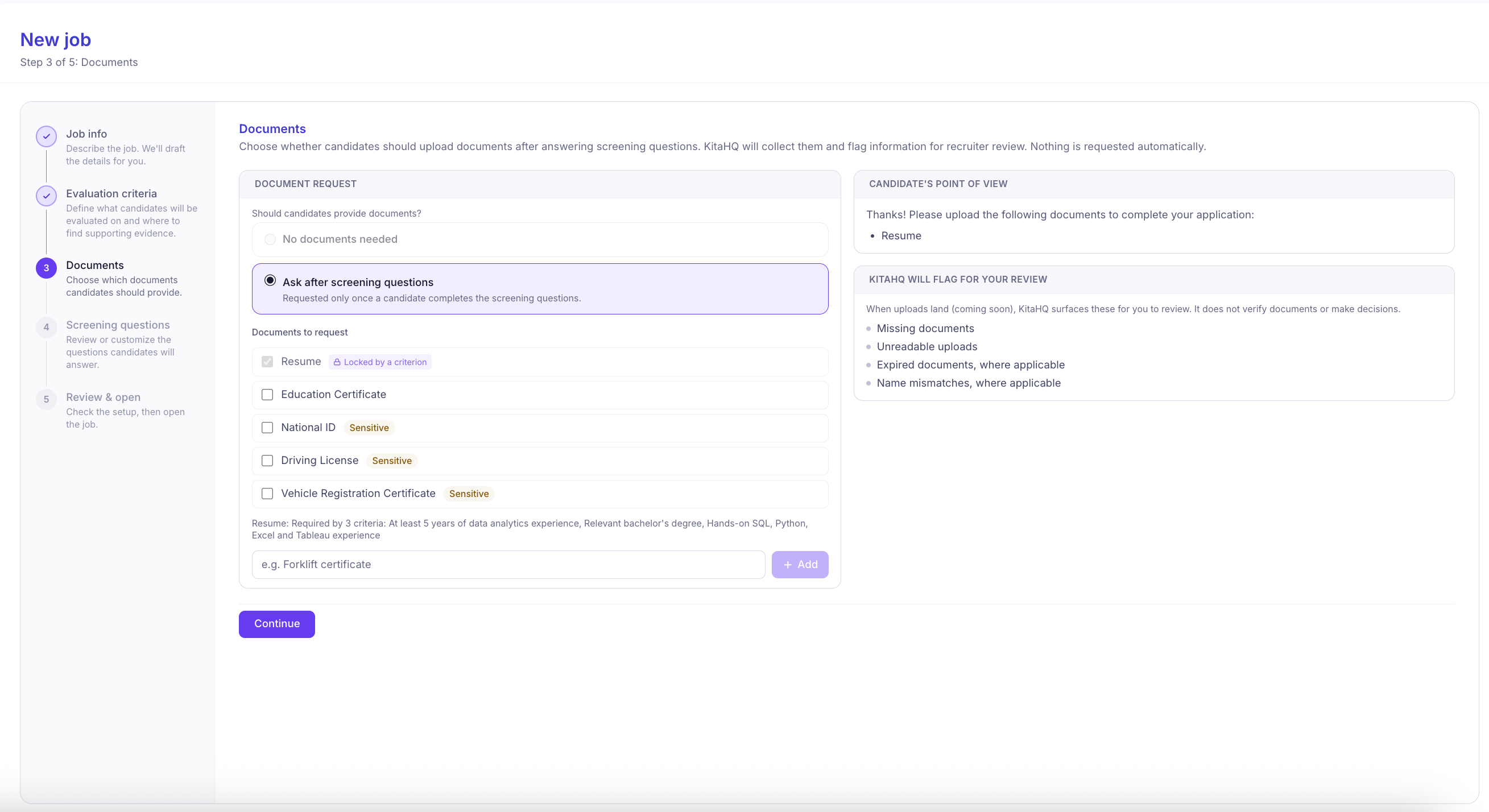
4
Review your screening questions
KitaHQ automatically generates screening questions based on your job description and evaluation criteria to help you assess candidates before moving them forward.Review the suggested questions, edit or remove any that don’t apply, or add your own. You can also Regenerate with AI and choose between open-ended or yes/no questions.Once you’re satisfied, click Continue.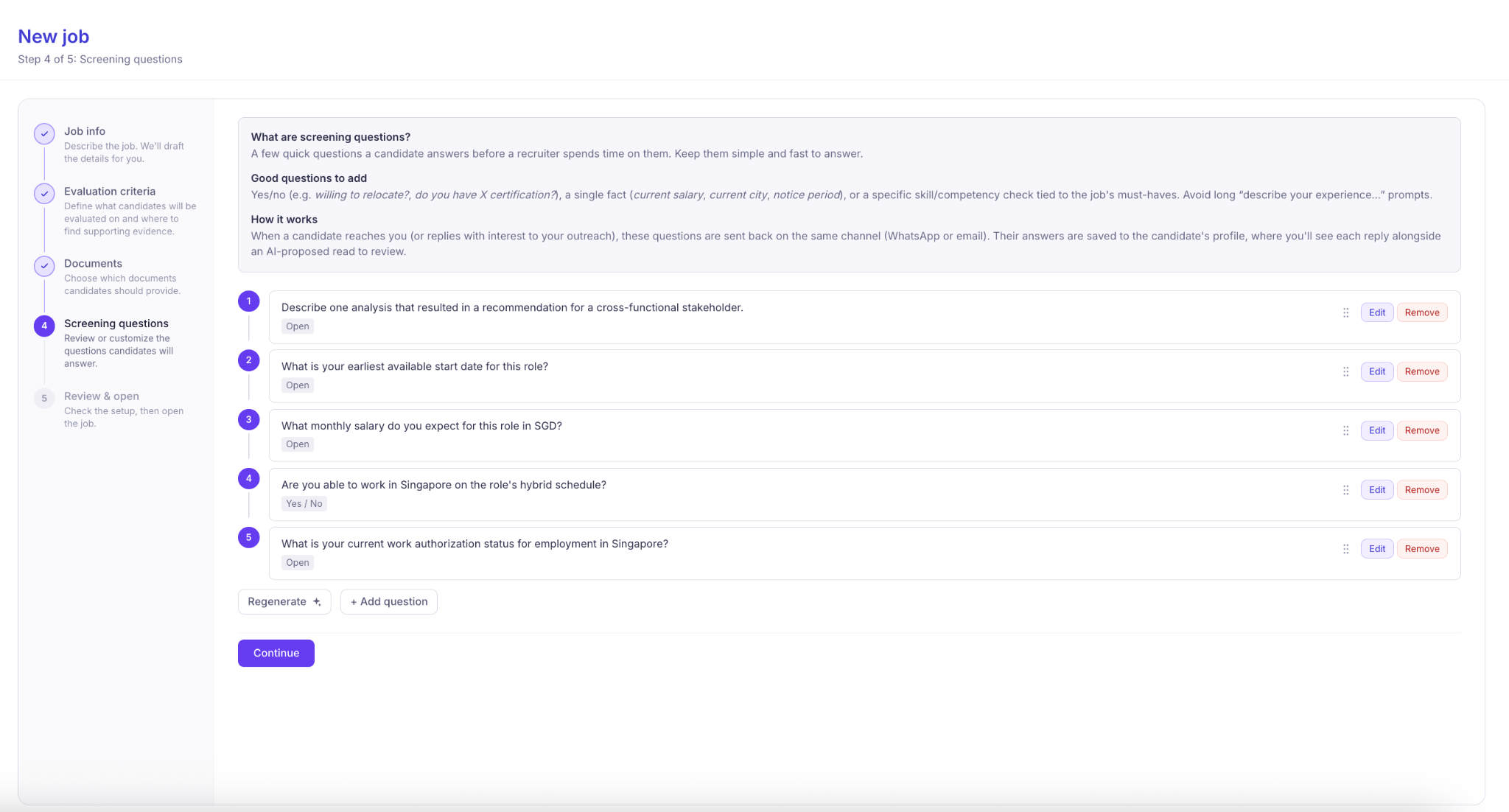
5
Review and open your job
Review your job setup, including evaluation criteria, screening questions, required documents, and hiring workflow. Each hiring stage comes with predefined actions to help automate tasks as candidates move through your pipeline.You can customize the workflow, including pipeline stages and actions, from the job’s Workflow tab.To publish the opening on your career page, select List on career page too. Once everything is ready, click Open job to start hiring, or Save as draft to finish setting it up later.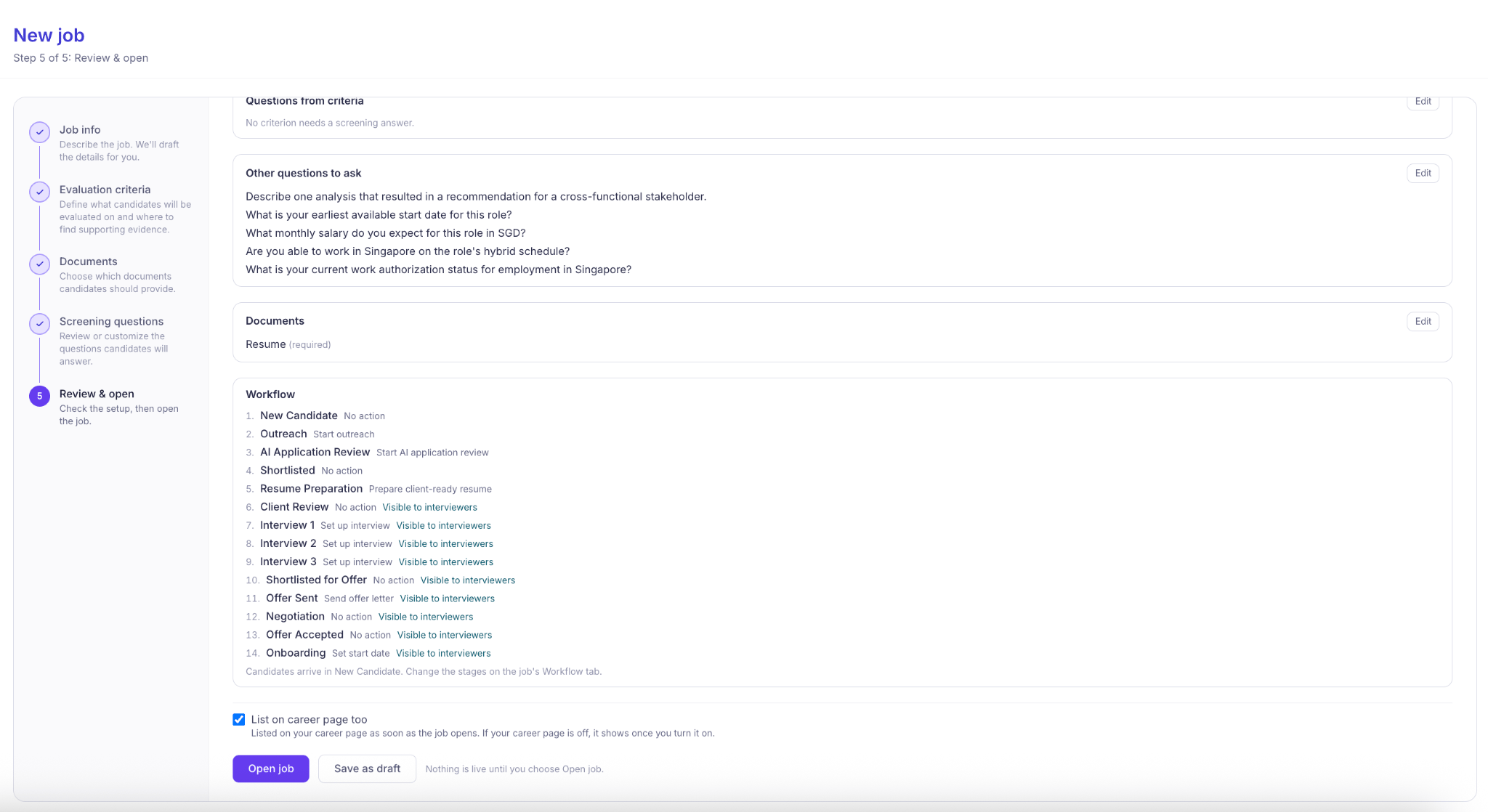
6
Manage your job settings
Once your job is open, you can manage everything from the Job Details page, organized into four tabs: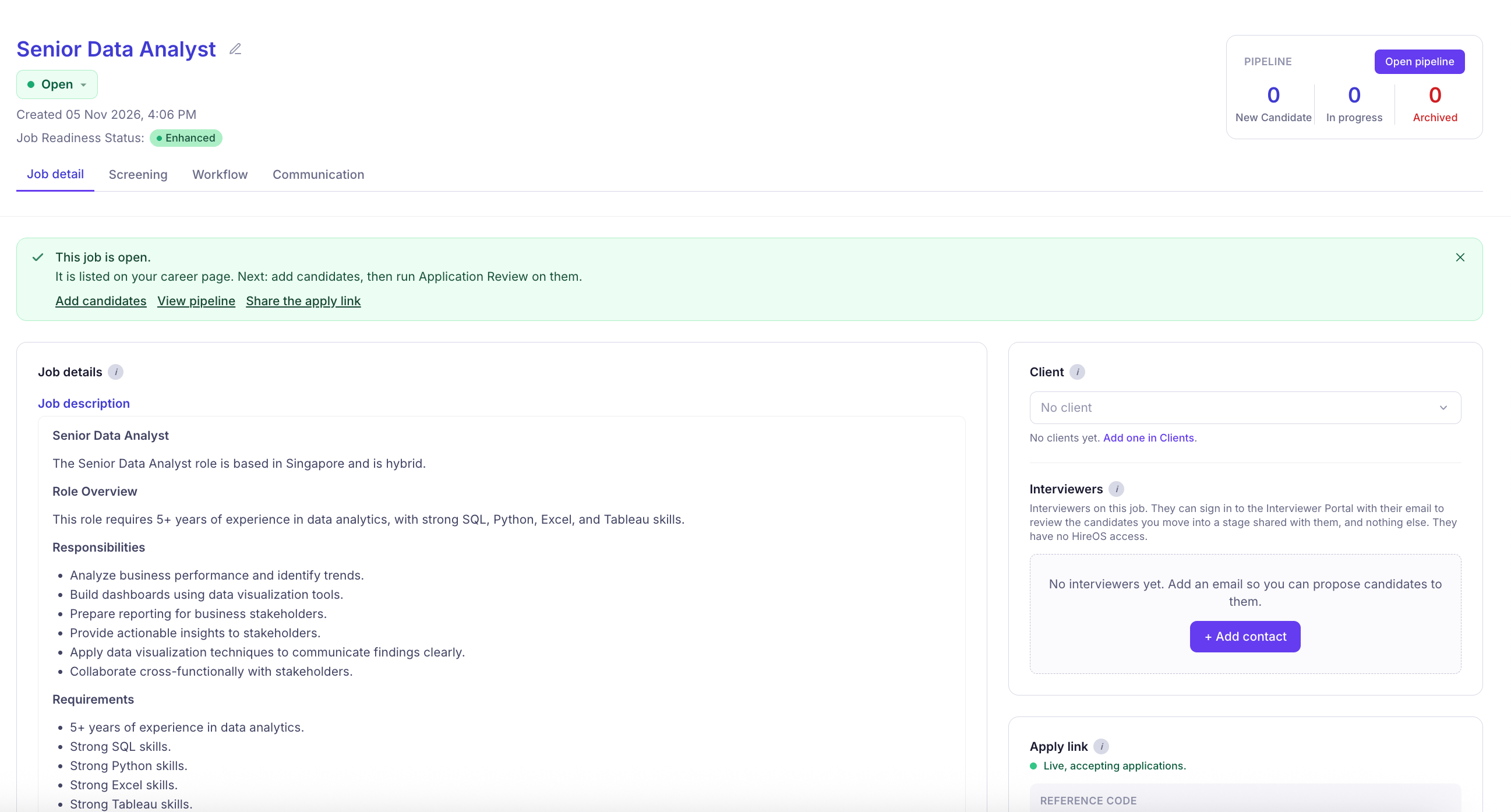
- Job Detail: Review or edit job descriptions, link clients, assign interviewers and collaborators, share application links, and connect AI interviews.
- Screening: Review and customize evidence-backed evaluation criteria, screening questions, and required documents.
- Workflow: Customize hiring stages and configure automated actions as candidates move through your pipeline.
- Communication: Select which connected email, WhatsApp Business, Personal WhatsApp, or SMS channels to use for candidate communications for this job.