

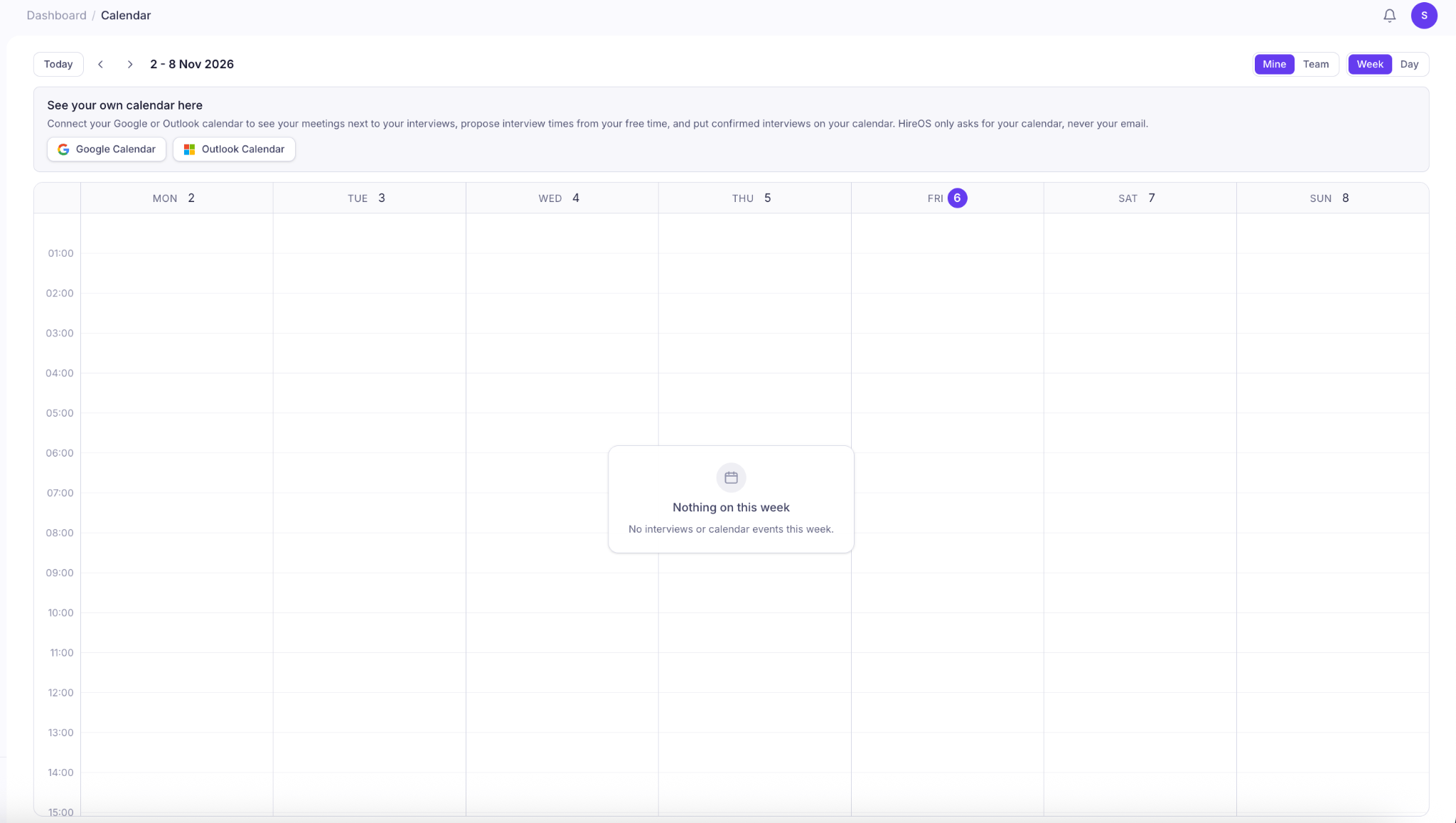
View Your Calendar
1
Navigate to Calendar from the left sidebar under Work.
2
View your scheduled interviews and calendar events.
3
Switch between Week and Day views to see your schedule.
4
Use the navigation arrows to move between dates, or click Today to return to the current date.
Connect Your Calendar
Connect your existing calendar to view your meetings alongside scheduled interviews in KitaHQ.1
Open Calendar from the left sidebar.
2
Click Google Calendar or Outlook Calendar.
3
Follow the authorization steps to connect your account.
4
Once connected, your calendar events can appear alongside your interviews in KitaHQ.
Switch Between Personal and Team Calendars
Use the Mine and Team options in the top-right corner to change your calendar view.- Mine: View your own scheduled interviews, meetings, and connected calendar events.
- Team: View team schedules to help coordinate interviews and recruitment activities.
Change Your Calendar View
Choose how you want to display your schedule:- Week View: See your schedule across seven days, making it easier to plan interviews and identify available time slots throughout the week.
- Day View: Focus on a single day’s schedule for a more detailed view of your upcoming events.