

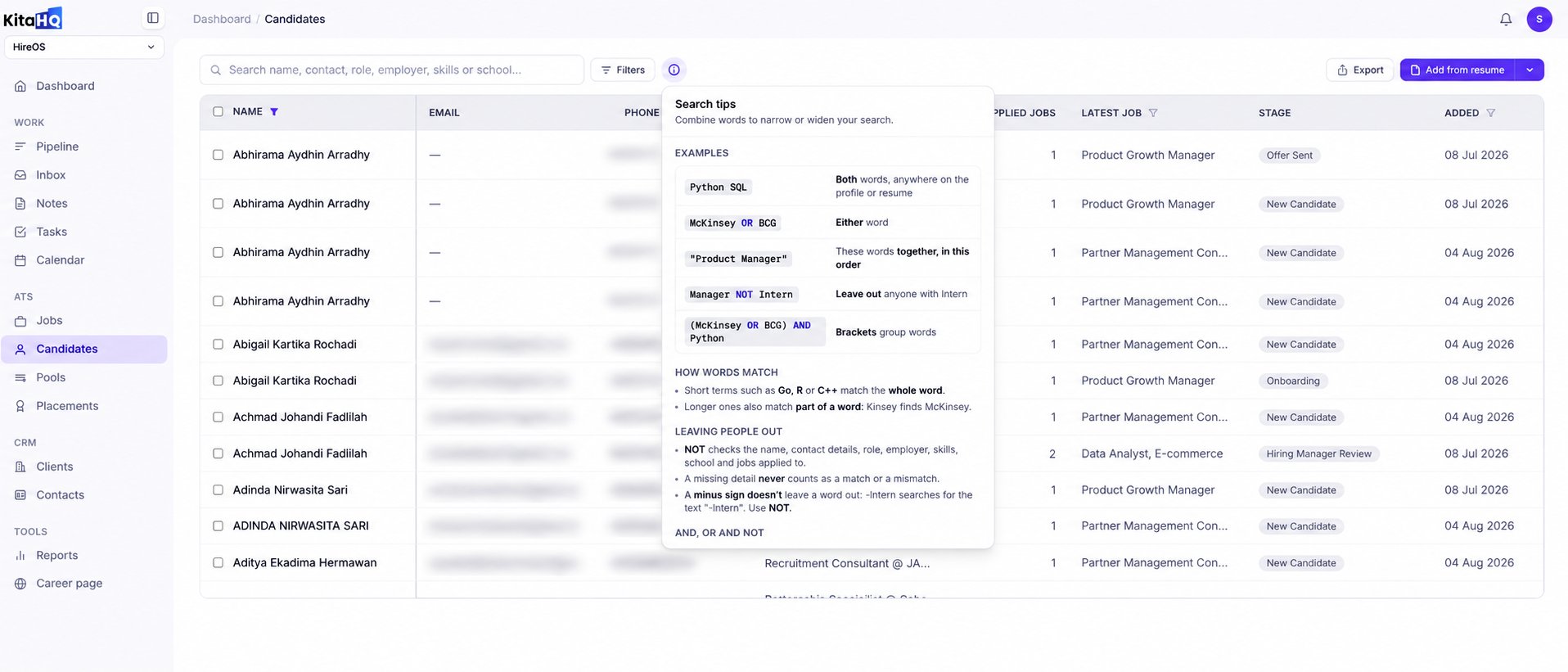
How to Search Candidates
1
Navigate to Candidates from the left sidebar.
2
Enter a keyword or combination of keywords in the search bar at the top of the page.
3
KitaHQ searches across candidate profiles and resumes to find matching results.
4
Use Filters to further refine your search, or select a candidate to view their full profile.
Use Advanced Search Operators
Combine keywords and search operators to find candidates more precisely.How Keyword Matching Works
KitaHQ searches across candidate names, contact information, roles, employers, skills, education, applied jobs, and resume content.- Short keywords: Terms such as
Go,R, orC++must match the whole word. - Longer keywords: Can match part of a word. For example, searching
Kinseycan also returnMcKinsey. - Exact phrases: Use quotation marks to search for words appearing together in a specific order.
- Exclusions: Use
NOTto exclude candidates matching a particular keyword.
NOT, KitaHQ checks all searchable candidate information. Candidates with missing information may still appear, since missing data is not treated as a match.