

Navigate Your Inbox
1
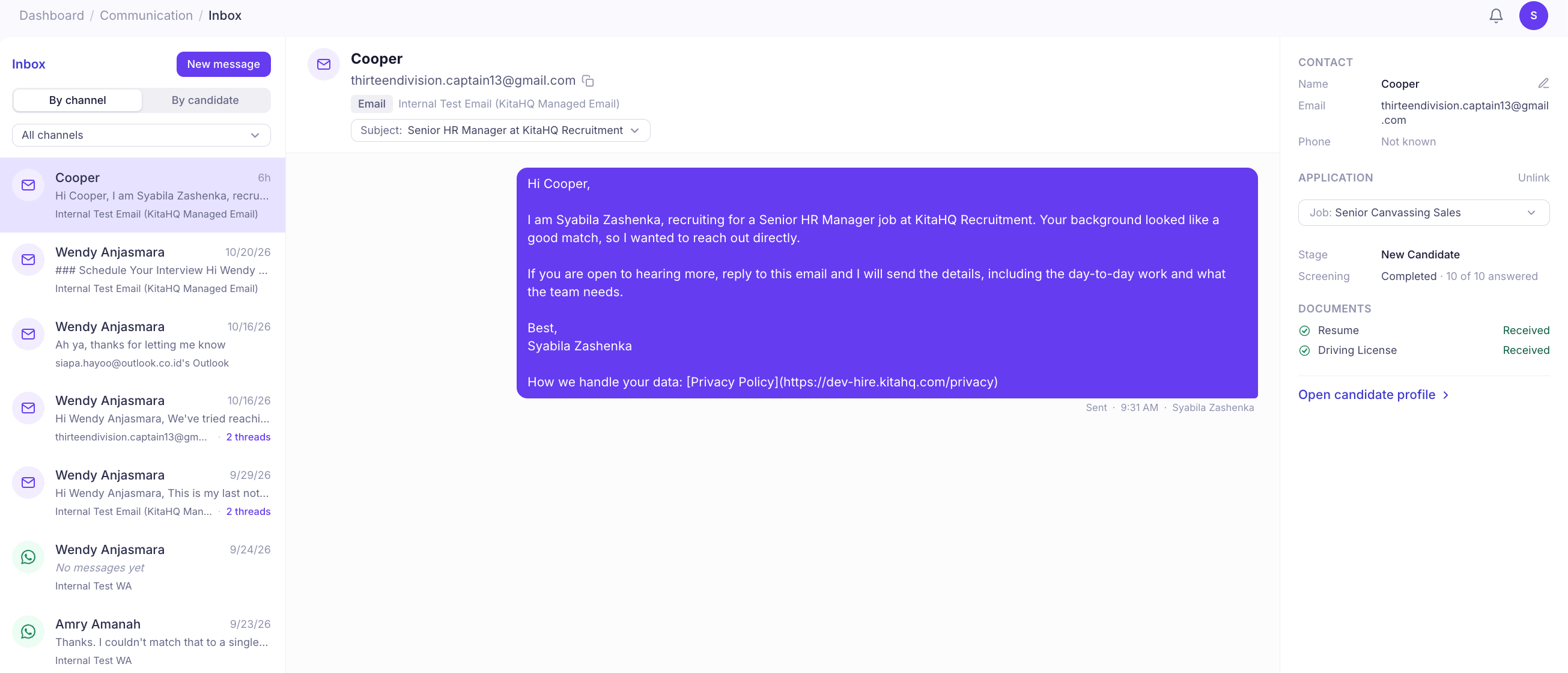
Navigate to Inbox from the left sidebar under Work.
2
View your conversations in the left panel.
3
Select a conversation to read the message history.
4
View the candidate's contact details, application status, and documents in the right panel.
- Conversation List: Browse conversations, see message previews, and select a thread.
- Message Thread: Read messages and view conversation details, including the communication channel and subject.
- Candidate Information: Access the candidate’s contact details, associated job application, current pipeline stage, screening status, and submitted documents.
View Conversations by Channel or Candidate
Use the options at the top of your inbox to organize conversations.- By Channel: View conversations grouped by communication channel. Use the All Channels dropdown to filter messages by Email, WhatsApp, or SMS.
- By Candidate: View conversations organized by candidate, making it easier to follow communications associated with each person.
Start a New Conversation
1
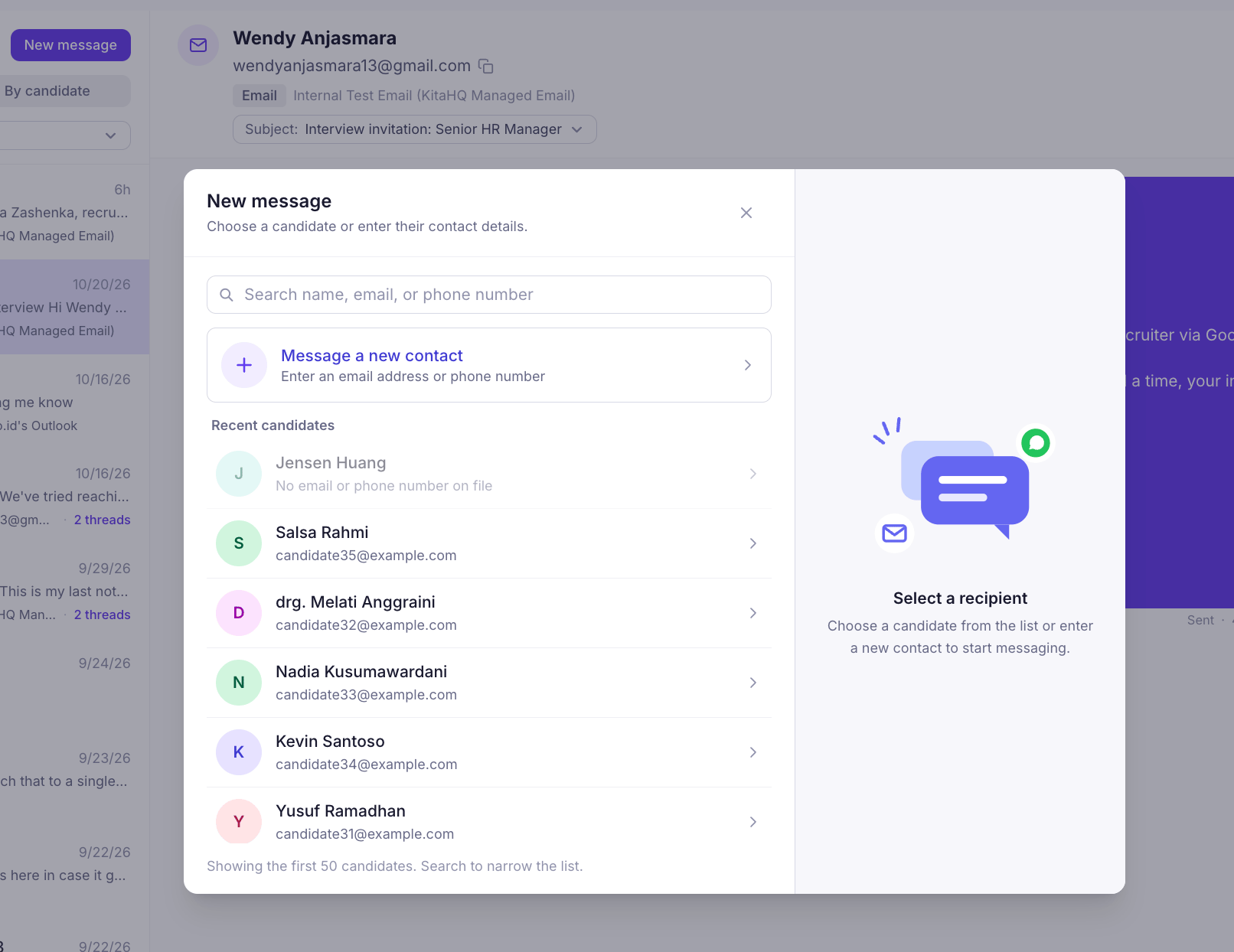
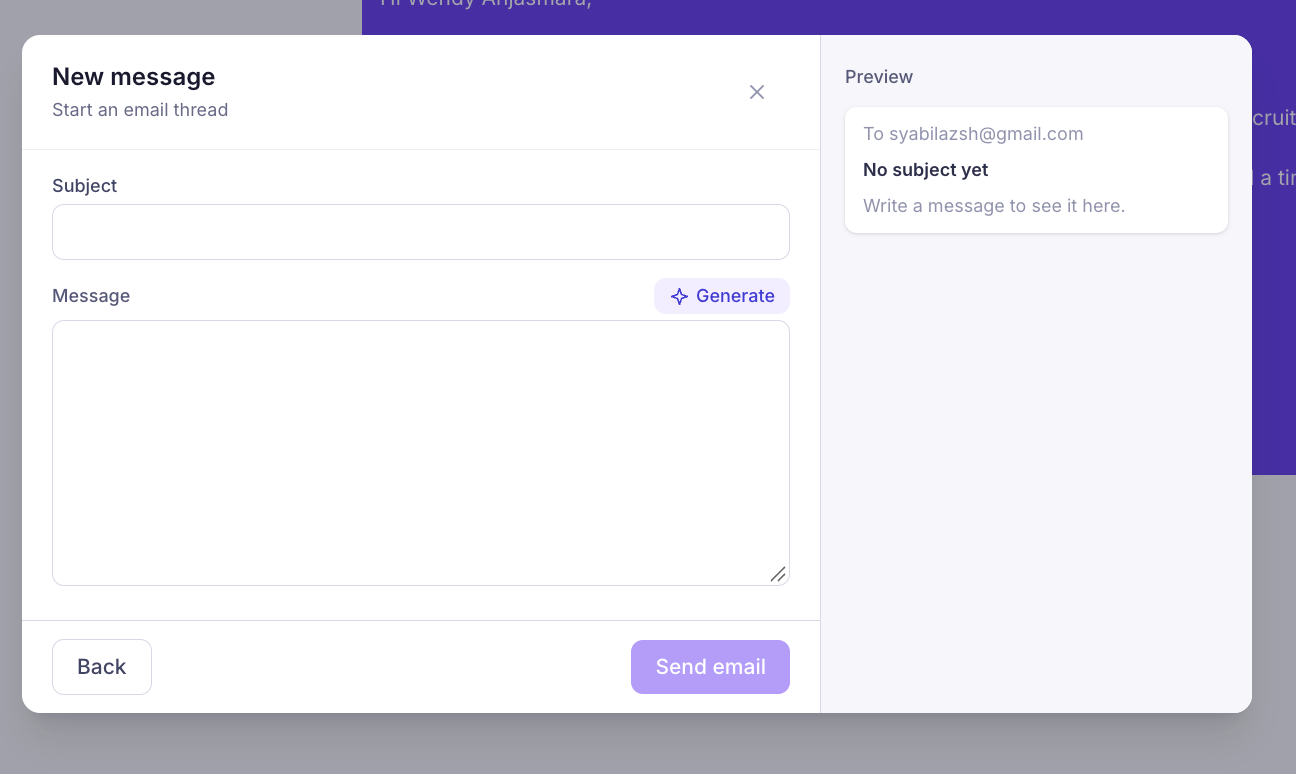
Click New Message at the top of the Inbox.
2
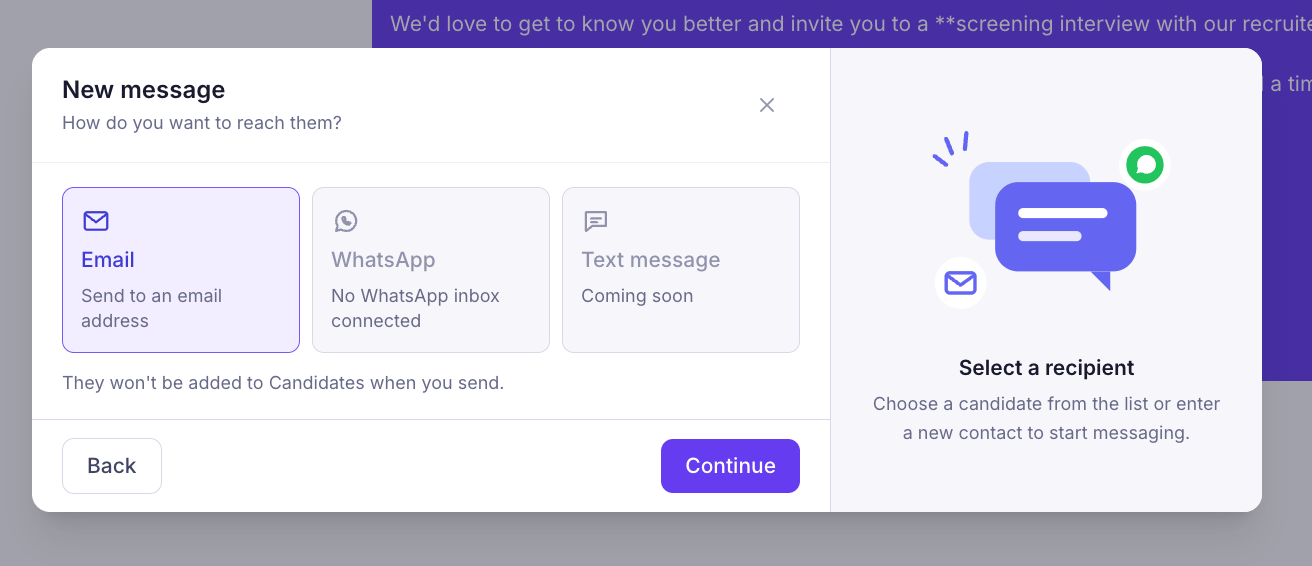
Select the recipient and communication channel: Email, WhatsApp, or SMS.
3
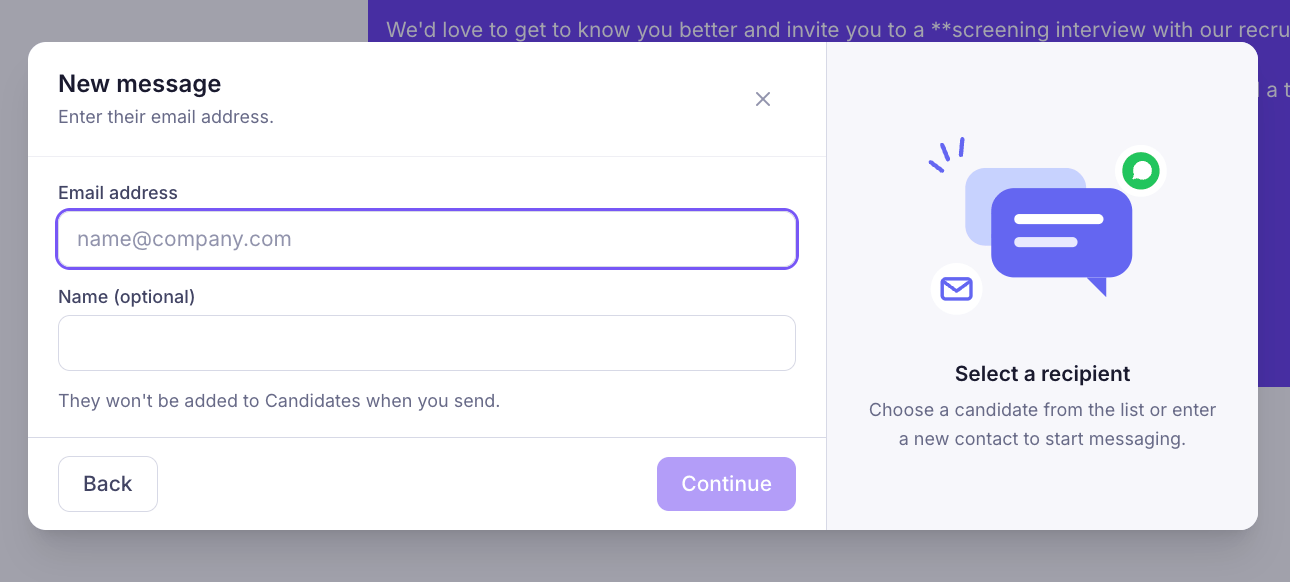
Compose your message.
4
Send your message to start the conversation.
View Message Details
When you open a conversation, KitaHQ displays the communication history in the center panel. Depending on the communication channel, you can view details such as:- Recipient: The candidate or contact associated with the conversation.
- Channel: Whether the message was sent through Email, WhatsApp, or SMS.
- Subject: The email subject associated with the conversation, where applicable.
- Message History: Previous messages exchanged with the recipient.
- Sender and Timestamp: Who sent each message and when it was sent.
View Candidate Information
The right panel displays information about the candidate associated with the selected conversation.| Section | What You Can View |
|---|---|
| Contact | Candidate name, email address, and phone number. |
| Application | The job associated with the conversation and the candidate’s current pipeline stage. |
| Screening | Screening completion status and the number of questions answered. |
| Documents | Submitted documents, such as resumes and other required files. |