
1. Define What You Want to Evaluate
Every role has different document requirements. With KitaHQ, you can define what information you want to evaluate and which documents should provide the supporting evidence. For example, you might want to check:- Driving License: Whether a candidate holds the correct license category and whether it remains valid through a required date.
- National ID: Whether identification details match the candidate’s submitted information.
- Education Certificate: Whether the candidate has the required degree or qualification.
- Professional Certification: Whether a certification matches the job requirements and remains valid, if applicable.
- Other Documents: Any additional information relevant to your hiring requirements.
Example: Motorcycle Delivery Driver
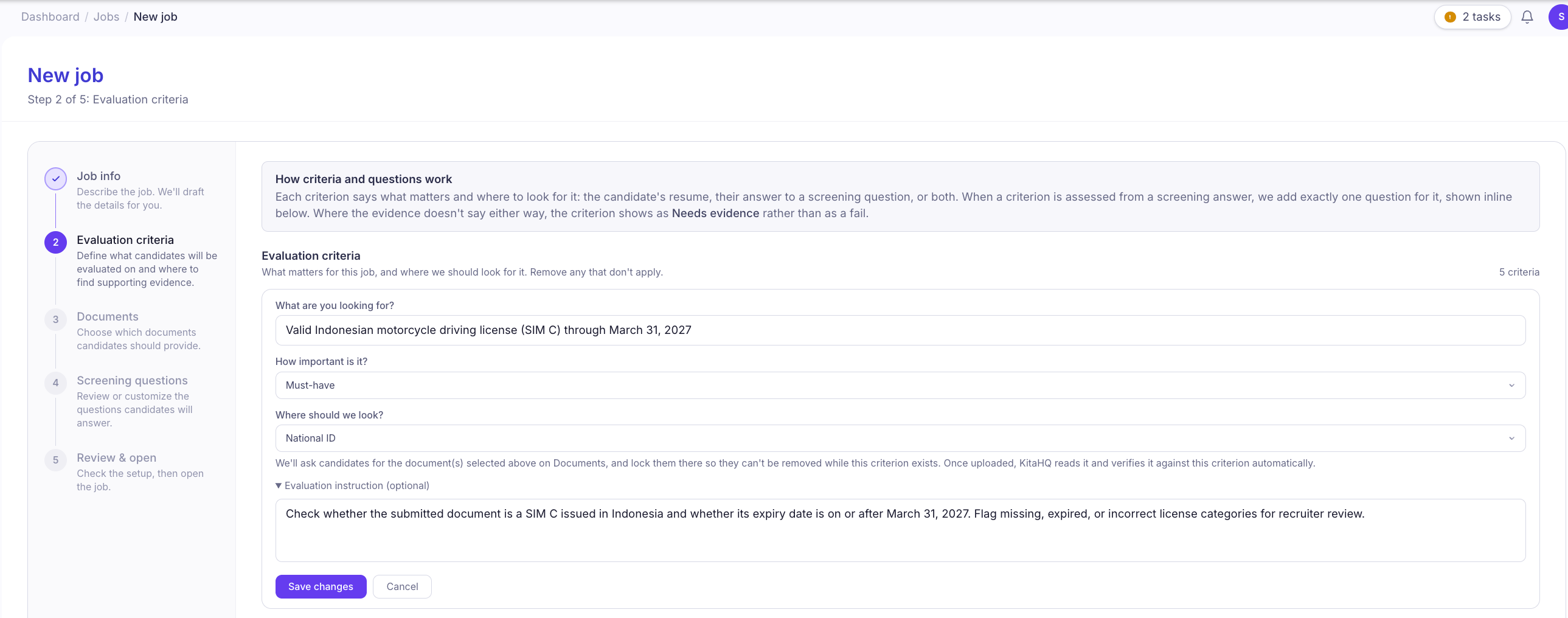
Suppose you’re hiring motorcycle delivery drivers in Indonesia and require candidates to hold a valid SIM C through March 31, 2027. You can define the evaluation criteria as follows:| Field | Example |
|---|---|
| Evaluation Criteria | Valid Indonesian motorcycle driving license (SIM C) through March 31, 2027 |
| Importance | Must-have |
| Evidence Source | Driving License |
| Evaluation Instruction | Check whether the submitted document is a SIM C issued in Indonesia and whether its expiry date is on or after March 31, 2027. Flag missing, expired, or incorrect license categories for recruiter review. |
2. Set Up Document Evaluation in HireOS
To configure document evaluation:Navigate to Jobs and create a new job.
Under Job info, enter or paste your job description, and optionally enable Enhance with AI to generate an AI-assisted job proposal.
Continue to Evaluation criteria.
Add or edit a criterion to define what you want to evaluate.
Select the requirement's importance, such as Must-have.
Under Where should we look?, select the relevant supporting document.
Add an optional Evaluation instruction explaining what information should be checked.
Click Save changes.
3. Request Supporting Documents from Candidates
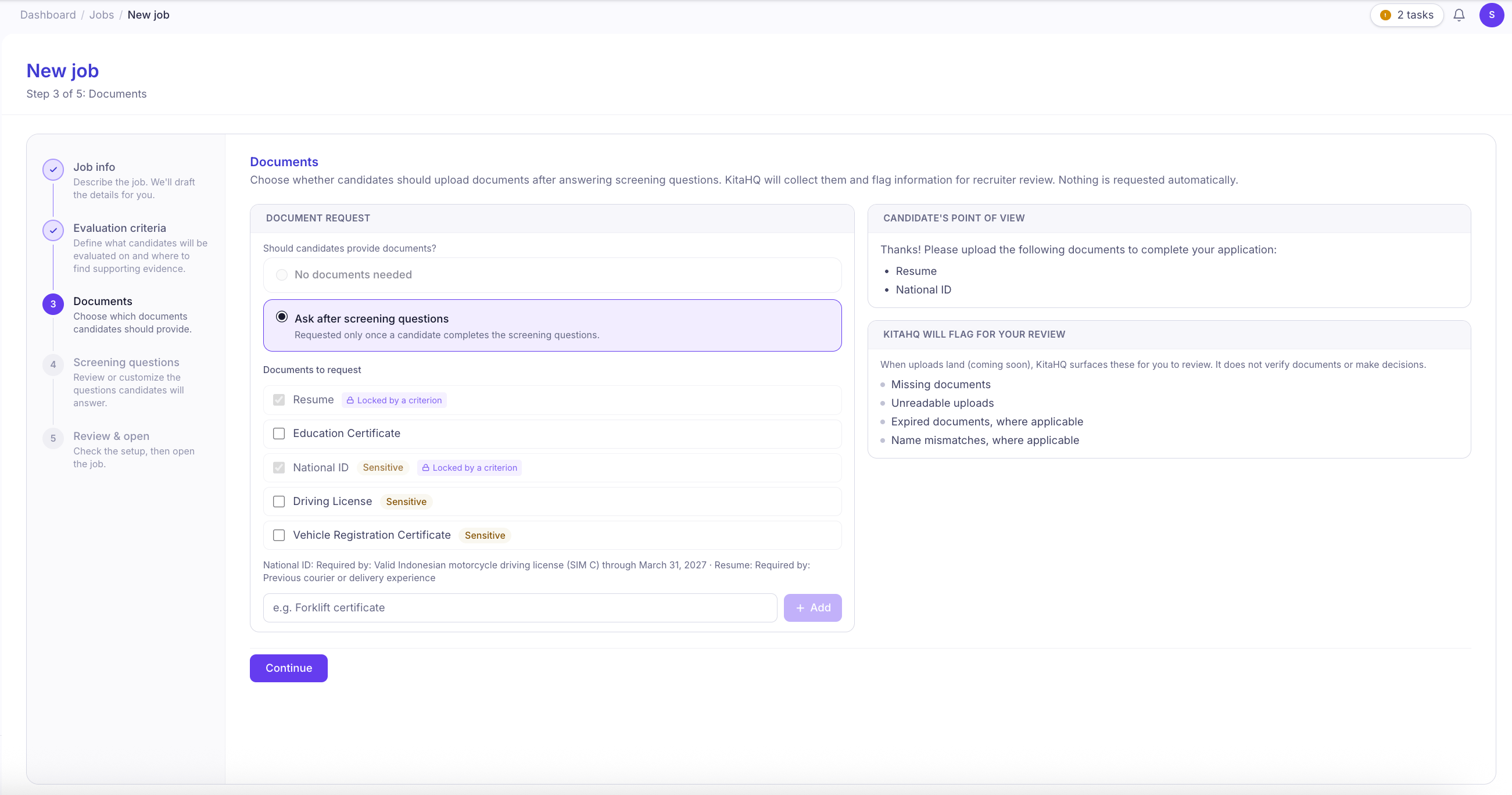
After defining your evaluation criteria, continue to the Documents step to specify what candidates should provide.- Select Ask after screening questions.
- Choose the required documents, such as Resume, Education Certificate, National ID, or Driving License.
- Add a custom document type if needed.
- Review the Candidate’s Point of View to see which documents will be requested.
- Click Continue.
4. Evaluate Documents Against Your Requirements
Document evaluation criteria let you specify what supporting evidence should be reviewed for each requirement. The information to examine depends on the document and the criteria you’ve configured.| Document | Example Information to Evaluate |
|---|---|
| Driving License | License category, expiry date, and suitability for the role |
| National ID | Name and identification details |
| Education Certificate | Degree, institution, and qualification |
| Professional Certification | Certification name, issuing organization, and validity period |
| Vehicle Registration Certificate | Vehicle information and registration expiry |
| Custom Document | Any job-specific information defined in your evaluation instructions |
Document Review Flags
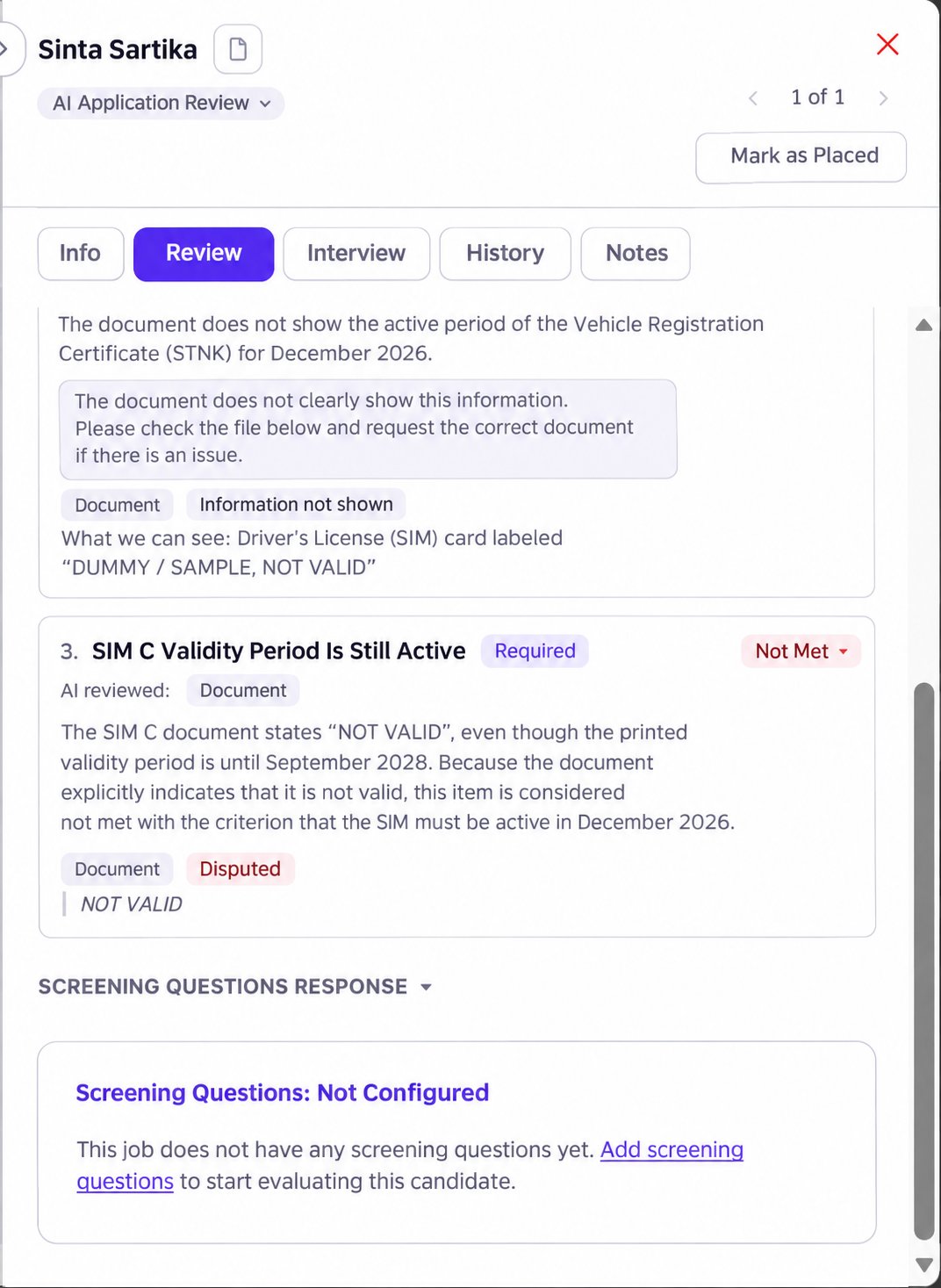
KitaHQ’s planned document review functionality is designed to highlight potential issues for recruiter review, including:- Missing documents: Required documents have not been provided.
- Unreadable uploads: Document information cannot be read clearly.
- Expired documents: A document may no longer be valid.
- Name mismatches: Information may not match the candidate’s submitted details.
5. Use Document Evidence to Support Hiring Decisions
By defining document requirements alongside your evaluation criteria, recruiters can establish a consistent way to review supporting information across applicants. This can help your team:- Review job-specific requirements: Focus on the documents and information relevant to each role.
- Identify potential issues: Know which details, such as expiry dates or license categories, require attention.
- Reduce repetitive checks: Reuse the same evaluation requirements across applicants for a particular job.
- Keep evidence organized: Manage document requests and evaluation criteria within the recruitment workflow.
- Support more consistent reviews: Evaluate candidates against the same clearly defined requirements.
Share the Application Form with Candidates
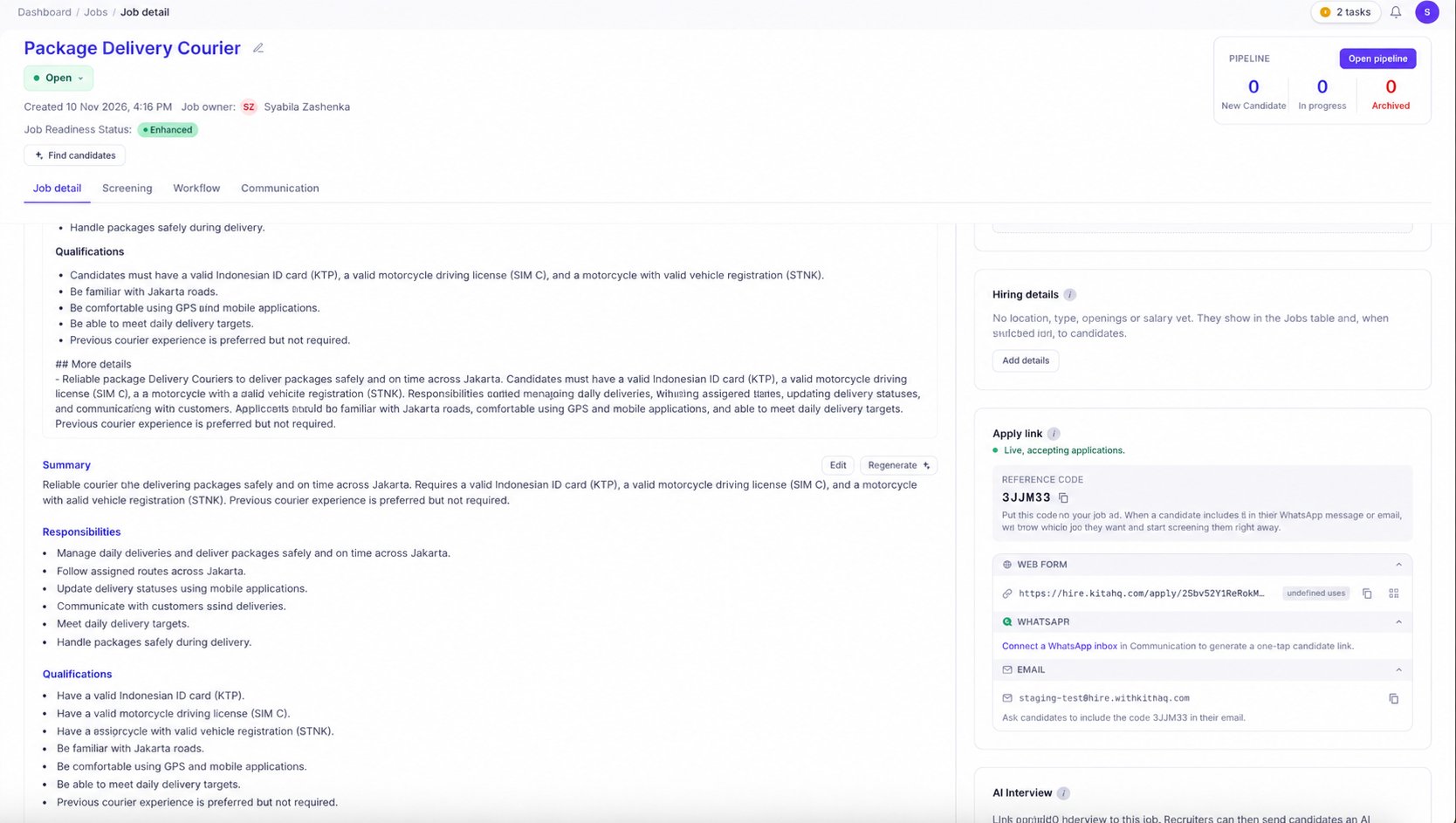
Once you’ve configured your evaluation criteria and document requirements, complete the job setup and open the job. KitaHQ provides an application link that you can share with candidates to collect their application information and required supporting documents.How to Share Your Application Form
Navigate to Jobs and open the relevant job.
Under Job detail, locate the Apply link section.
Copy the Web Form link and share it with candidates through your preferred communication channel.
Alternatively, publish the job on your Career Page so candidates can apply directly.