

Search for Candidates with AI
Find qualified candidates faster with KitaHQ AI Sourcing. KitaHQ AI Sourcing helps recruiters discover qualified candidates from 500M+ professional profiles using natural-language search. Refine your search, review candidate fit insights, find available work email addresses, and save candidates to HireOS for outreach and recruitment management.Getting Started with AI Sourcing
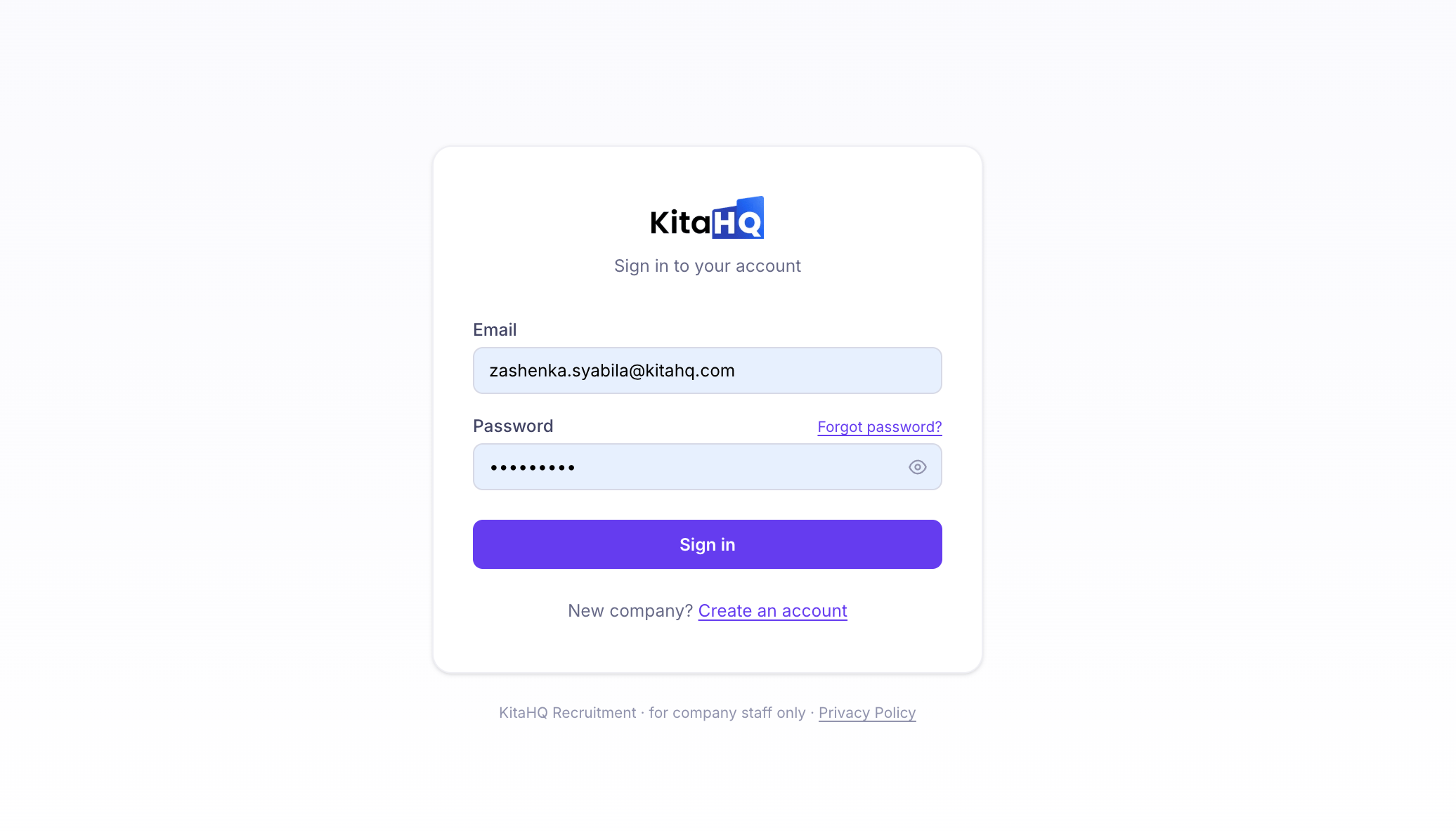
1. Start Your Candidate Search
2
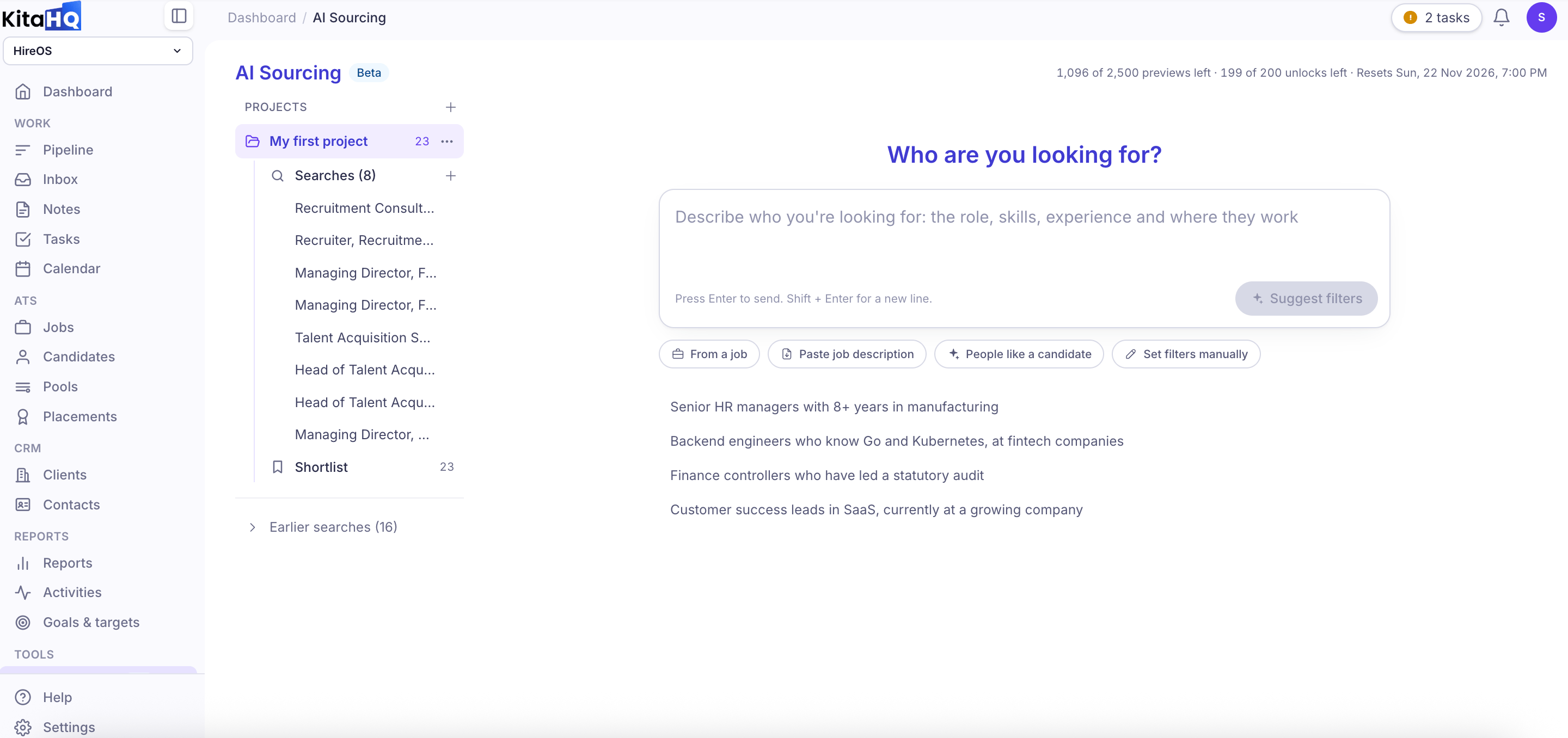
Navigate to AI Sourcing, or open AI Sourcing directly.
3
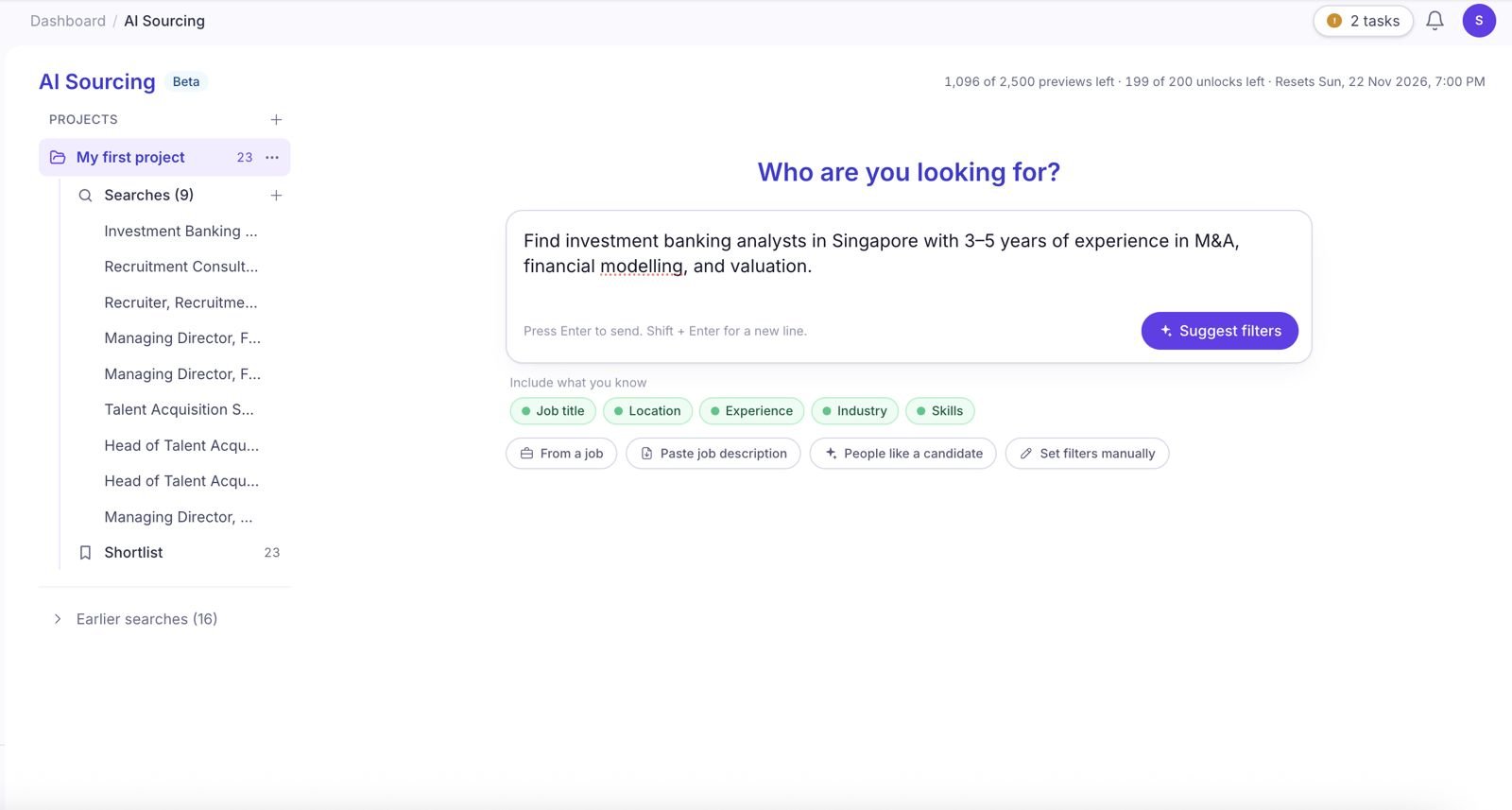
Under Who are you looking for?, enter a description of your ideal candidate. Press Enter to start searching, or click Suggest filters to generate AI-assisted search filters.
4
Review the suggested filters based on your search requirements. KitaHQ will display relevant criteria, such as job titles, location, skills, and experience, along with an estimated number of matching candidates.
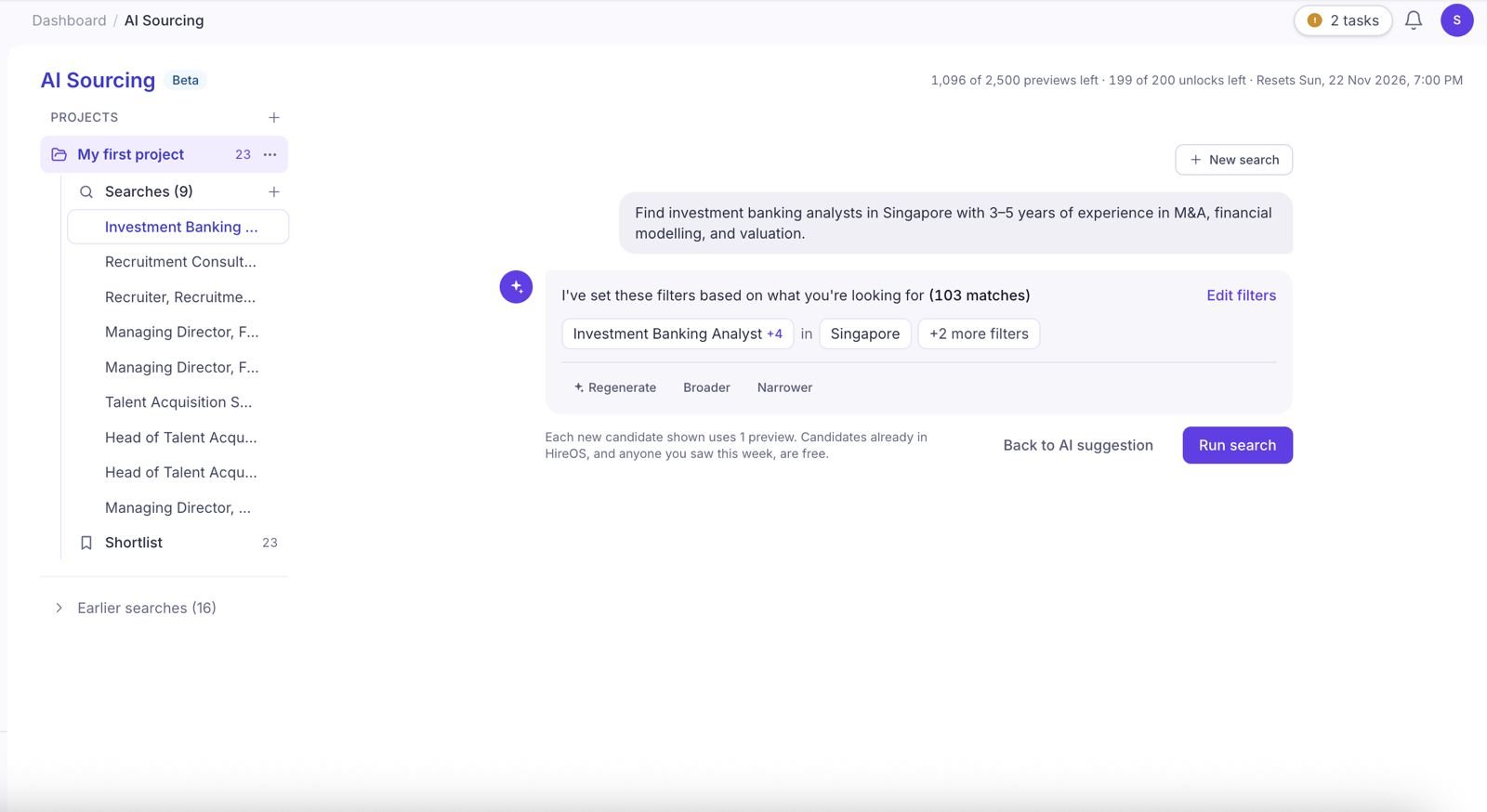
- Regenerate: Generate a new set of suggested filters.
- Broader: Expand your search criteria to discover more potential candidates.
- Narrower: Make your search criteria more specific.
- Edit filters: Manually adjust the search criteria.
5
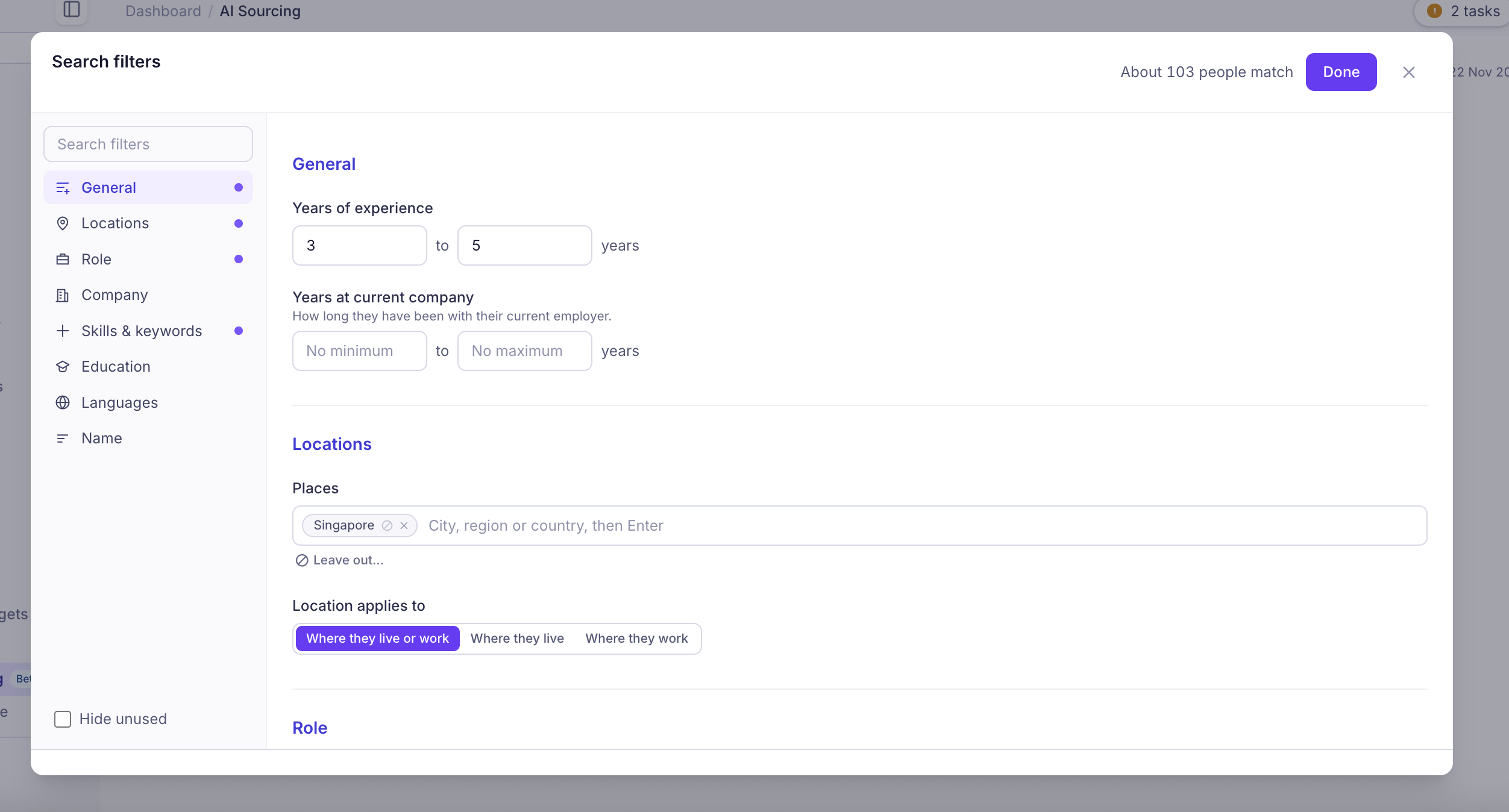
If you select Edit filters, you can configure available criteria under General, Locations, Role, Company, Skills & keywords, Education, Languages, and Name. Click Done to apply your changes.
6
Once you're satisfied with your filters, click Run search to view matching candidate profiles.
2. Review Candidate Search Results
Once you click Run search, KitaHQ displays matching candidate profiles based on your search criteria. Each result includes the candidate’s name, location, current role, company, and relevant matching evidence showing how their professional background aligns with your requirements. You can also:- Matches: View the estimated number of candidates matching your search.
- Filters: Review or adjust your active search filters.
- Show conversation: Revisit your search prompts and AI-suggested filters.
- New search: Start another candidate search.
- Hide: Remove irrelevant candidates from your results.
- Save: Save candidates to HireOS or your project shortlist.
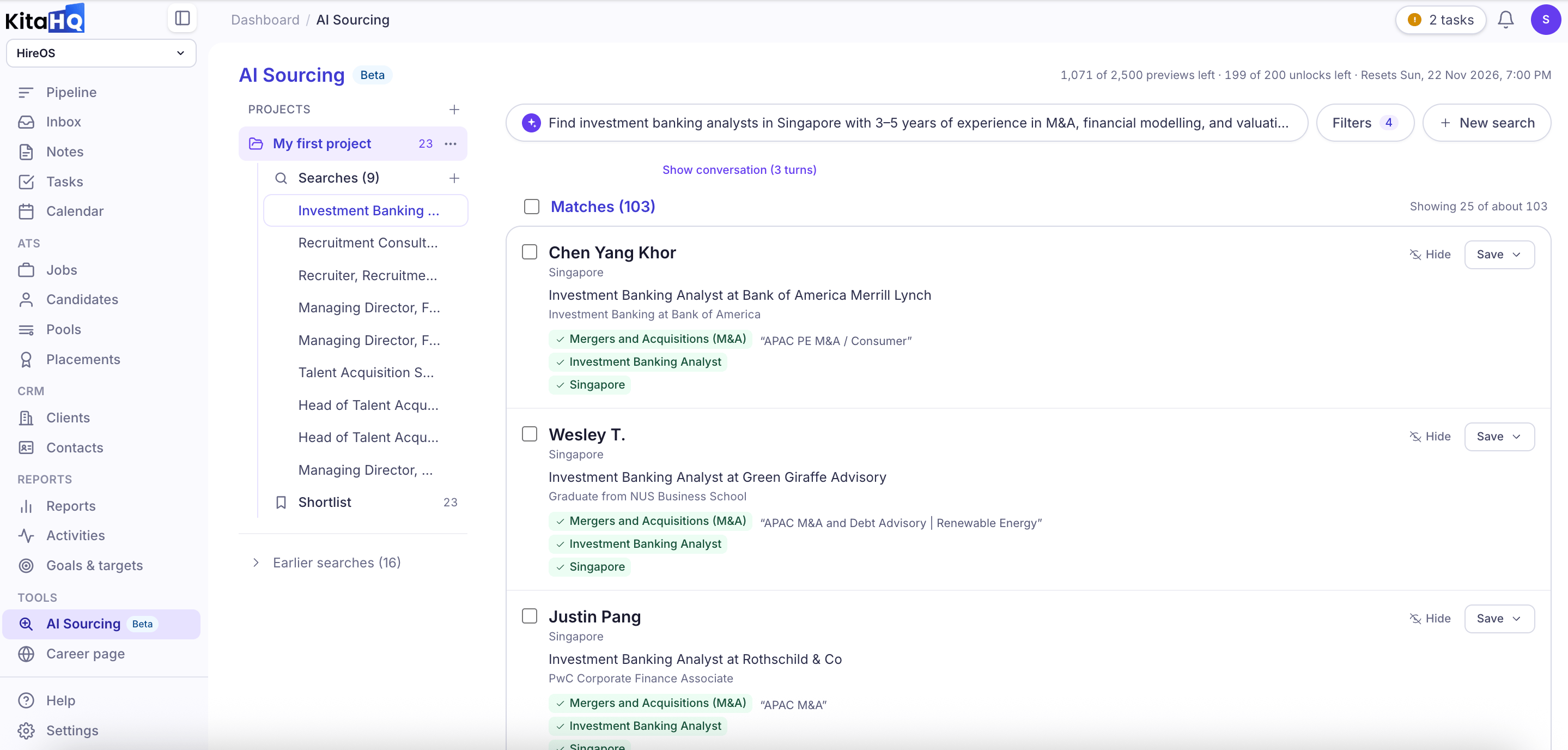
Each newly displayed candidate uses one profile preview. Candidates already in HireOS, or candidates you’ve viewed during the current week, can be viewed without using an additional preview.
3. Review Candidate Profiles and Unlock Information
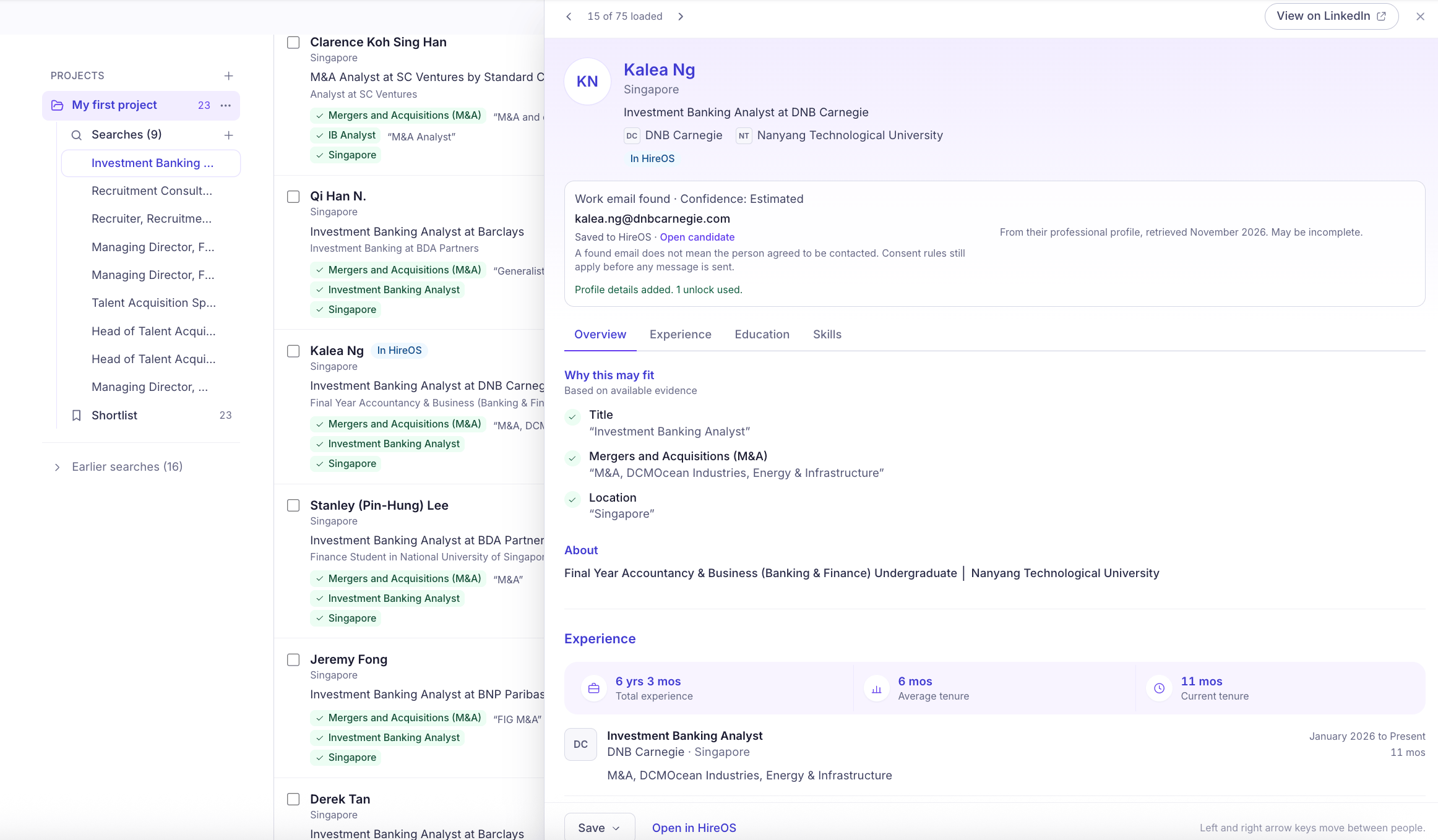
Click on a candidate to open their profile and navigate between Overview, Experience, Education, and Skills to review their professional background. Under Why this may fit, review the supporting evidence showing how the candidate matches your search criteria. You can also:- Find work email: Discover the candidate’s available professional email address.
- Get more profile details: Retrieve additional professional information about the candidate.
- View on LinkedIn: Open the candidate’s LinkedIn profile.
Each unlock action uses one unlock only when new information is successfully found. Your remaining unlock balance is displayed in AI Sourcing.
4. Save Candidates to HireOS
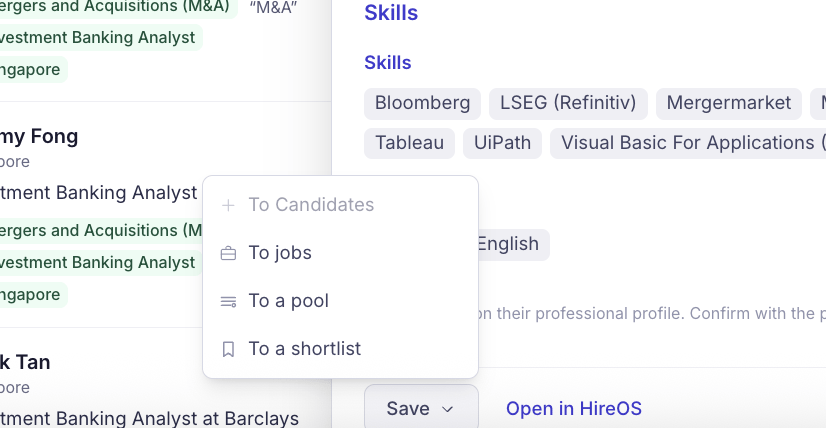
Once you’ve found suitable candidates, click Save on their profile and choose where to save them:- To Candidates: Add candidates to your HireOS candidate database.
- To jobs: Add candidates to an existing job and its hiring pipeline.
- To a pool: Organize candidates into talent pools for current or future opportunities.
- To a shortlist: Save candidates to your AI Sourcing project shortlist for later review.
5. Start Candidate Outreach
Once candidates are saved to HireOS, you can reach out through Email, WhatsApp, or SMS. You can also create automated sequences to engage candidates and manage follow-ups. Learn more in Outreach and Follow-ups.6. Understand Your Sourcing Usage
At the top of the AI Sourcing page, you can track:- Previews left: Remaining candidate profile previews.
- Unlocks left: Remaining profile information unlocks.
- Resets: When your usage allowance renews.
Organize Searches with Projects
Keep your candidate searches organized using Projects. Each project helps you manage sourcing activities for different roles, clients, or hiring needs. From the Projects sidebar, you can:- Searches: Access your searches within a project.
- Shortlist: Review candidates you’ve shortlisted.
- Earlier searches: Revisit previous searches.
Tips for Better Candidate Searches
To find more relevant candidates, try the following:- Be specific: Include relevant job titles, skills, experience, and location in your search description.
- Use alternative job titles: Include similar roles to discover candidates with relevant professional backgrounds.
- Start broad, then narrow down: Use Broader, Narrower, or Edit filters to adjust your search.
- Review matching evidence: Check Why this may fit to understand how each candidate aligns with your requirements.
- Save relevant candidates: Add promising profiles to your Shortlist, Candidate Database, Job, or Candidate Pool for further review.